Smart Home Device Update Problems
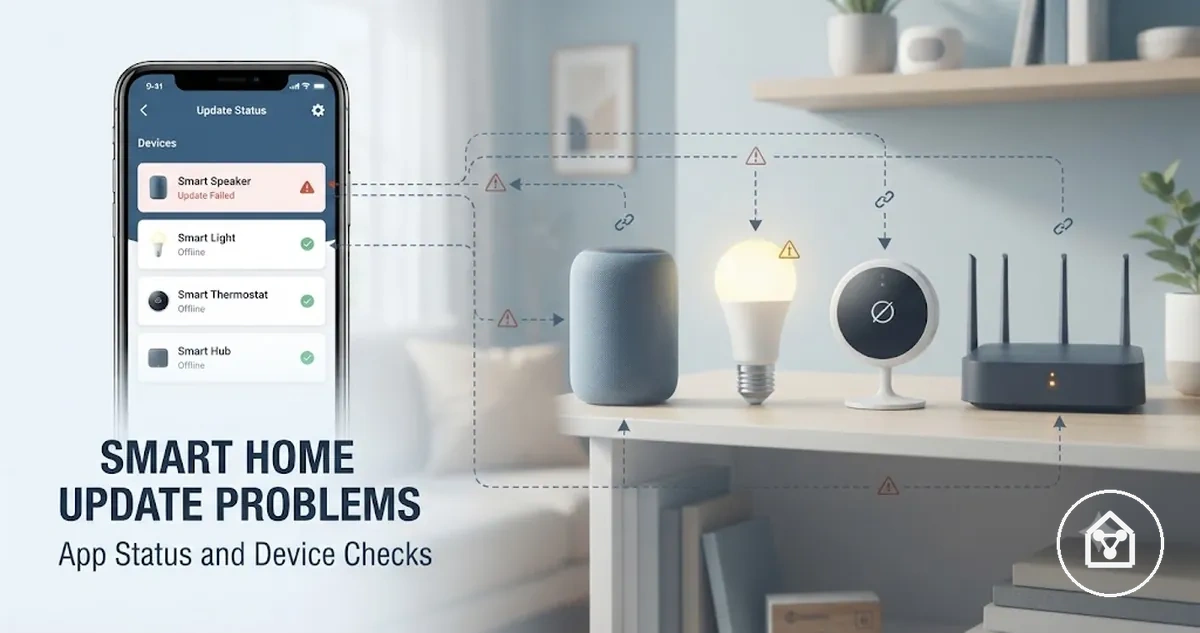
Smart home device update problems occur when a firmware update does not move a connected device to the expected operating state. Common symptoms include an update failed message, a device stuck updating, or a device showing offline after update status, while troubleshooting separates visible device symptoms from possible causes involving the app, hub, controller, Wi-Fi connection, or power state.
The control app may show a failed update or waiting status while the device, hub, or controller reports another state.
Smart home device update problems can appear when a firmware update stops during installation, repeats in an update loop, or leaves a device with a different connection state after completion. The control app may show a failed update or waiting status while the device, hub, or controller reports another state. These update-specific issues should be separated from broader device problems; users can review the wider smart home devices hub context when the issue extends beyond the update process.
Safe diagnosis begins with identifying the current device state before attempting reset or recovery actions.
Safe diagnosis begins with identifying the current device state before attempting reset or recovery actions. Checking the app status, hub connection, controller path, Wi-Fi condition, and power supply helps determine whether the problem is related to the firmware update process or another part of the smart home system. For example, a device that shows a failed update in the app but still responds through a local control method requires a different check path from a device that becomes completely unresponsive after updating.
The appropriate recovery step can differ according to device type, firmware state, app behavior, hub configuration, and the condition observed after the update attempt.
Reset and recovery actions may become relevant when basic checks do not restore the expected device state, but they should follow symptom recognition and cause evaluation. The appropriate recovery step can differ according to device type, firmware state, app behavior, hub configuration, and the condition observed after the update attempt.
Table of Contents
How smart home update problems usually appear
Smart home update problems usually appear through changes in device status, update progress, or control response after a firmware update attempt. The main visible symptom groups include a failed update, an update loop, offline status, unresponsive controls, app warnings, hub errors, and changed behavior. These symptoms show what the user can observe, but the same signal can represent different conditions depending on the device state and update context.
How smart home update problems usually appear can differ between one affected device and multiple connected devices.
How smart home update problems usually appear can differ between one affected device and multiple connected devices. A single device showing offline status after an update may indicate a local device, app, hub, or Wi-Fi communication issue, while several devices changing state together may indicate a broader connection or controller condition. For example, a smart light that returns after the control app refreshes shows a different post-update symptom from multiple devices that remain unavailable through the same hub.
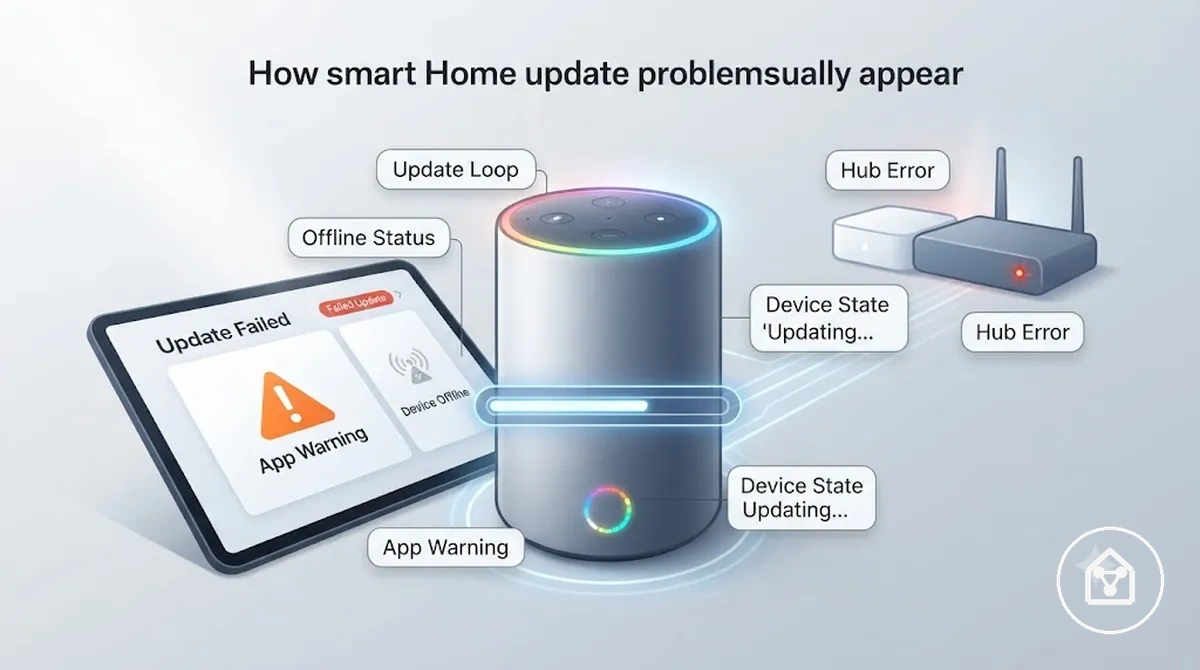
Visible symptoms can be grouped by what the user can observe before checking possible causes:
- Failed update: The device or app shows an incomplete update state, such as an error message or stopped progress, instead of confirming a completed firmware update.
- Update loop: The device remains stuck updating or repeatedly reboots while attempting to complete the same update process.
- Offline status: The control app shows the device as unavailable after an update, which can indicate that the device has not returned to its expected connection state.
- Unresponsive controls: App commands or local controls do not produce the expected response, showing that the device state requires further checking.
- App warning: The control app displays a warning message related to the update state, device connection, or available action.
- Hub error: The hub or controller reports a communication problem when the updated device does not reconnect correctly.
- Changed behavior: Device functions such as automation, permissions, or room assignments behave differently after the update process.
Firmware update failed or did not complete
A firmware update failed when the device or platform did not finish writing, validating, or applying the update. The failure may appear as incomplete progress, an error message, or a device state that does not match the expected update result. A failed firmware update does not by itself confirm device damage because the visible outcome can relate to the update process, app state, hub environment, or device response.
A firmware update failed when the device or platform did not finish writing, validating, or applying the update.
Firmware update failed or did not complete is usually confirmed through app status, progress behavior, and device response. Key indicators include progress failure, an app timeout, a device reboot during the update, a firmware version mismatch, or a retry prompt after the installation attempt. For example, a smart home device showing an update error message while remaining responsive represents a different update state from a device that repeatedly reboots and does not return to its expected status.
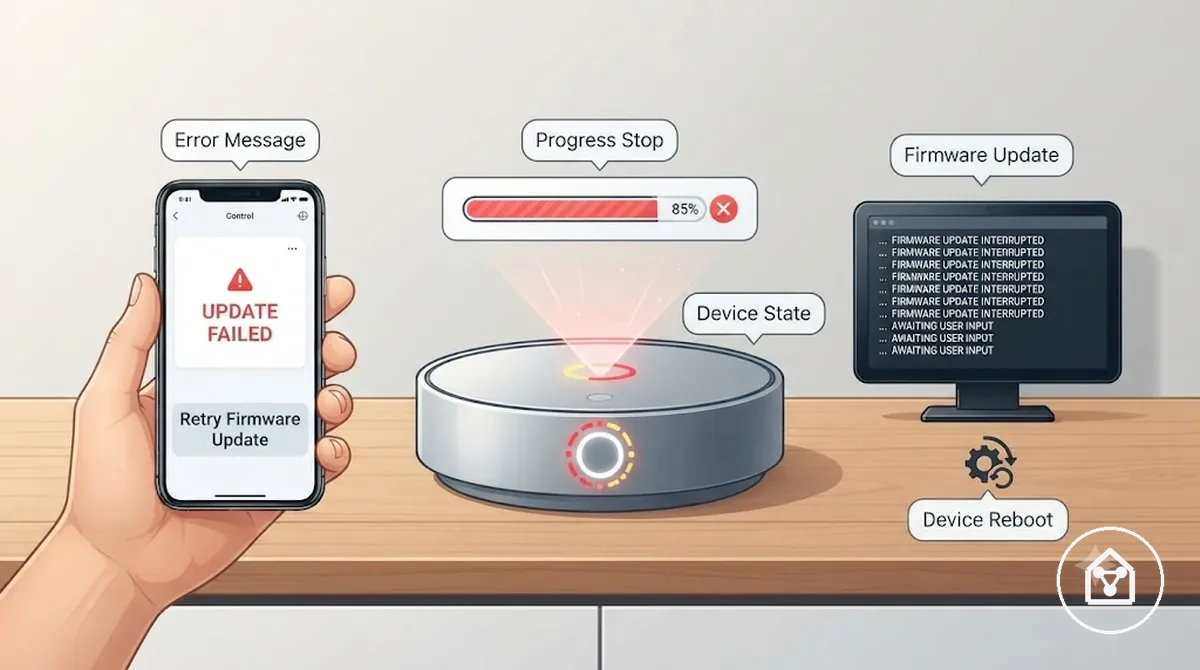
- Progress failure: The firmware update stops before the device finishes applying the new software state.
- Error message: The app displays an update error indicating that the installation did not complete as expected.
- App timeout: The control app stops receiving an expected response while the update process is running.
- Device reboot: The device restarts during the update process and requires checking its final update state.
- Firmware version mismatch: The device or app shows a firmware version state that does not match the expected update result.
- Retry prompt: The app requests another attempt after the previous firmware update did not complete.
Device stuck updating or looping during update
A device stuck updating should be judged by duration, device indicators, app status, and device responsiveness rather than by the update display alone. A normal waiting state, stalled progress, and an update loop can show similar symptoms, but each represents a different update condition. Avoid interrupting the update process before the visible indicators provide a reason for further recovery checks.
Avoid interrupting the update process before the visible indicators provide a reason for further recovery checks.
Device stuck updating or looping during update can appear when firmware applying continues slowly, progress stops, or the device repeatedly restarts without returning online. LED behavior, progress percentage, app refresh results, hub status, and network availability help distinguish a slow update from a stalled update or looping update. For example, a device that restarts once and reconnects after an app refresh represents a different condition from a device showing repeated rebooting while the same update status remains visible.
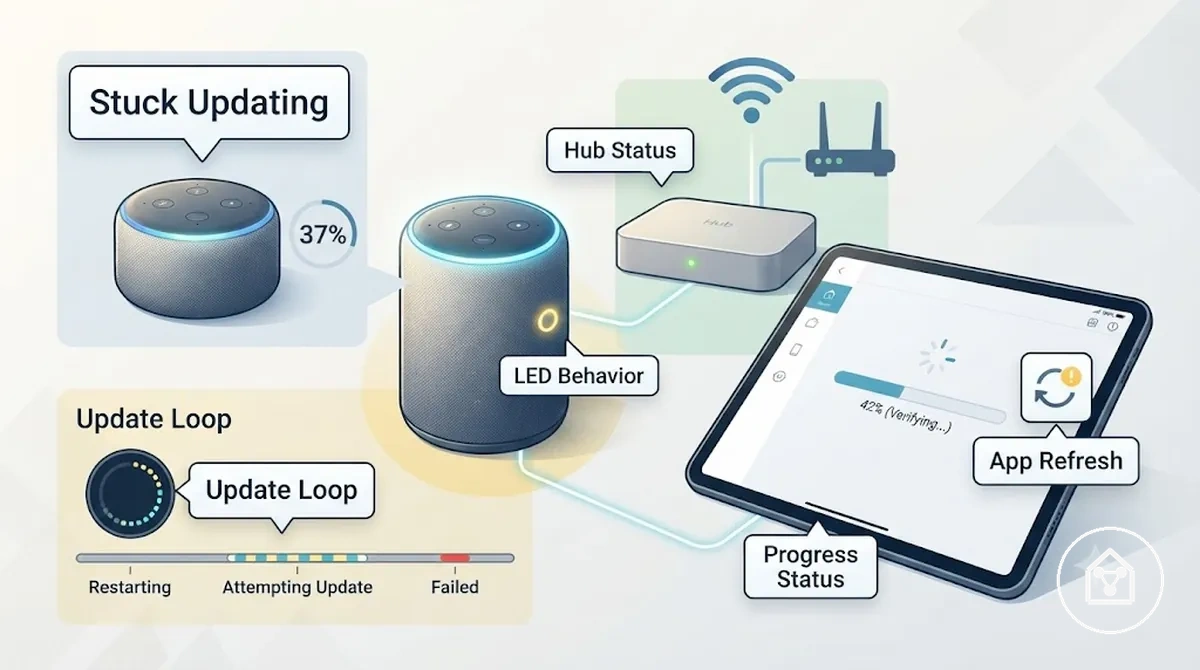
Device stuck updating or looping during update can be checked through these observable signals:
- Duration: Compare the current update state with the expected behavior for the device instead of applying an unsupported fixed time limit.
- Progress percentage: Check whether the progress indicator continues moving, stops at one point, or returns to the same stage.
- LED behavior: Review the device status light because visible patterns can indicate different update states.
- App refresh: Refresh the control app to check whether the displayed update status matches the device response.
- Hub status: Confirm whether the connected hub or controller still recognizes the device during the update process.
- Network availability: Check whether the communication path remains available before moving toward recovery actions.
Device offline or unresponsive after update
A device showing offline after update usually means the device has lost its expected relationship with the control app, hub, controller, Wi-Fi connection, or another control-state path after the update process. The first checks should focus on online status, app communication, and device response rather than assuming hardware damage.
The first checks should focus on online status, app communication, and device response rather than assuming hardware damage.
Device offline or unresponsive after update can appear differently depending on whether one device or many devices are affected. A device that appears unavailable in the control app but still responds through a local button represents a different condition from a device that is not responding locally and has lost hub visibility. For example, one device becoming disconnected after an update window may indicate a local reconnect condition, while many devices becoming unavailable together may indicate a wider control relationship issue involving the hub or network path.
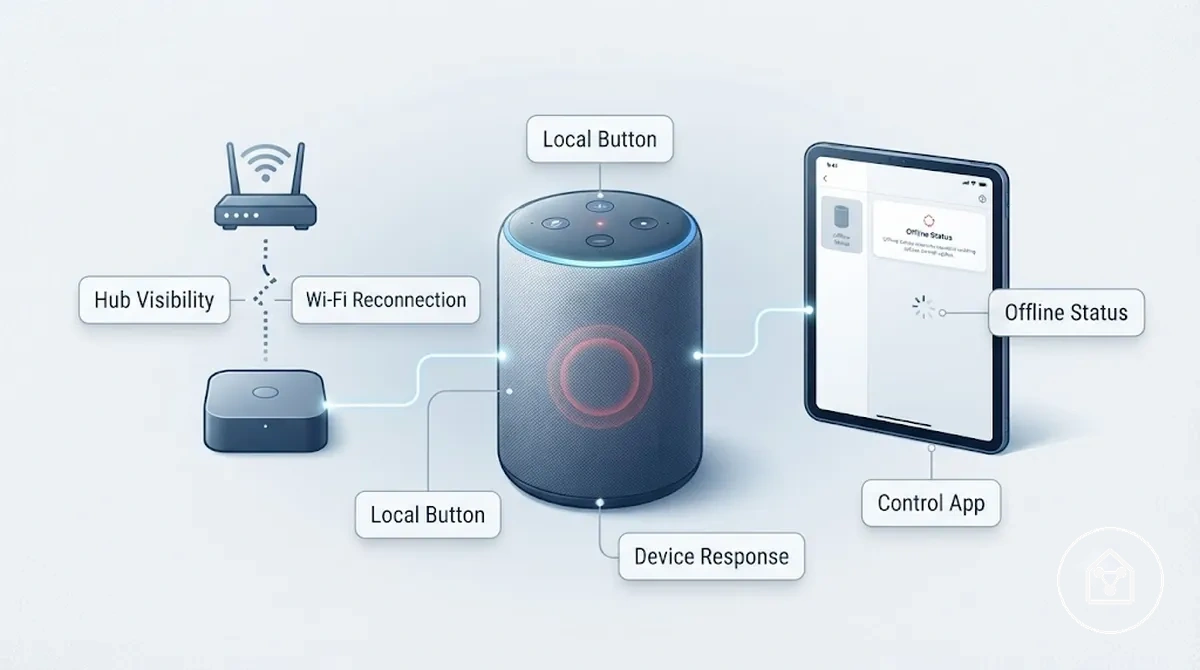
Device offline or unresponsive after update symptoms can be grouped by the visible relationship between the device and its control system:
- Offline status: The control app shows the device as unavailable while the device remains powered.
- Unresponsive controls: App commands or the local button do not produce the expected device response after the update.
- Hub visibility: The hub or controller no longer shows the device in the connected device list.
- Wi-Fi reconnection: The device may need to restore its Wi-Fi connection before returning to its expected online status.
- Permission or room assignment: App permissions or room assignment settings may need review when the device appears connected but control behavior has changed.
Update problems versus wider smart home device failure
Update problems and wider smart home device failure can appear similar, but the difference is usually identified through timing, affected devices, and the relationship between the device, app, hub, and network. An issue linked to an update event often affects the updated device state, while a wider failure can involve broader system behavior. Timing is the first criterion to separate an update-specific issue from a general device condition.
Post-update timing alone is not enough to confirm that the update event caused the entire failure.
Post-update timing alone is not enough to confirm that the update event caused the entire failure. A single device changing status after an update may indicate a local control, app, or connection-state change, while many affected devices during the same update window may indicate a wider smart home device failure. Hub status, app changes, automation behavior, and physical response provide additional context because the same symptom can represent different failure scopes. For example, a device that still responds through a local button differs from multiple devices that lose app control and automation behavior together.
The comparison block separates update-linked signals from wider failure signals.
Update problems versus wider smart home device failure can be compared by scope and timing before moving to broader failure coverage through devices not working after updates. The comparison block separates update-linked signals from wider failure signals.
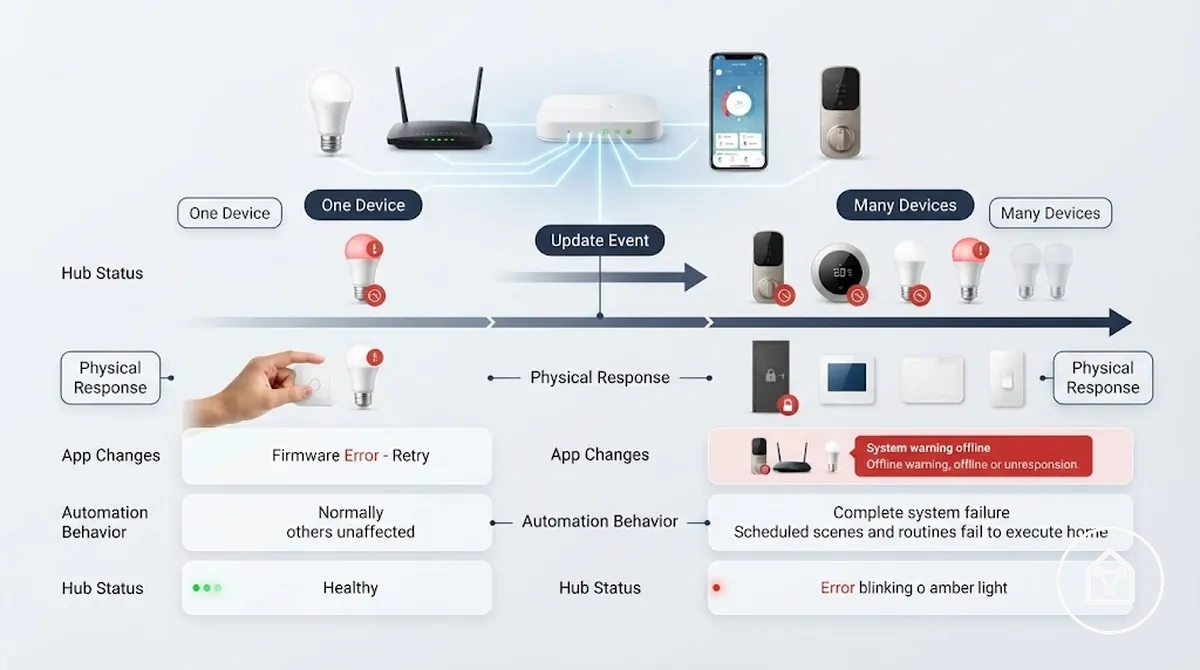
| Update-linked signal | Wider failure signal |
|---|---|
| Timing: The issue appears after a specific update event or update attempt. | Timing: The issue appears without a clear connection to an update event. |
| Affected devices: One device or a limited group changes state after the update. | Affected devices: Many unrelated devices become unavailable together. |
| Hub status: The hub may show a changed relationship with the updated device. | Hub status: The hub or controller may show broader connection problems across devices. |
| App changes: The control app may display changed device status or control behavior. | App changes: Multiple app functions or device controls may be affected. |
| Automation behavior: Automations connected to the updated device may behave differently. | Automation behavior: Multiple automation routines may fail across different devices. |
| Physical response: The device may still respond through local controls or status indicators. | Physical response: Devices may show reduced response beyond app control changes. |
What causes smart home firmware updates to fail
Smart home firmware updates can fail when the update process is affected by device state, connection path, platform conditions, or the ability of the device environment to complete the update. Common cause families include Wi-Fi strength, hub communication, power stability, app version, account state, server availability, and firmware compatibility. The visible result depends on how each condition affects the specific device and update state.
A diagnostic table helps separate these cause families by their visible signals and checks.
Firmware updates move through a sequence where the device receives, validates, and applies new firmware. A weak Wi-Fi connection can interrupt firmware transfer, while unstable hub communication can affect controller recognition or device validation. Power stability, app version, account state, server availability, and firmware compatibility can create different update conditions because the same update failure signal can have different meanings across smart home systems. A diagnostic table helps separate these cause families by their visible signals and checks.
Firmware updates move through a sequence where the device receives, validates, and applies new firmware.
For example, one smart home device may show an update failure because its connection path is unstable, while another device in the same environment may complete the update because its hub communication and power stability remain consistent. The cause should be matched to the visible symptom and device environment rather than treated as a single exact cause.
| Cause family | Visible signal | Check | Likely meaning |
|---|---|---|---|
| Wi-Fi strength | Firmware transfer stops or the device loses communication during the update. | Check connection path and Wi-Fi availability. | The update condition may be affected by unstable communication. |
| Hub communication | The controller cannot maintain device recognition during the update. | Check hub status, controller connection, and device roster. | The hub relationship may affect validation or update progress. |
| Power stability | The device loses update progress or restarts during the process. | Check battery condition, adapter connection, or power source stability. | Power interruption can change the device update state. |
| App version or account state | The update prompt, permissions, or control path does not continue normally. | Check app version and account authorization state. | The app or account condition may prevent the update process from continuing. |
| Server availability | The update request cannot continue through the platform. | Check platform availability and update delivery status. | The platform condition may delay or prevent update completion. |
| Firmware compatibility | The expected firmware update does not complete for the device environment. | Check whether the firmware matches the device configuration. | The update condition may not match the device requirements. |
Weak Wi-Fi, hub, or controller communication
Weak Wi-Fi, hub communication, or controller communication can interrupt firmware transfer, validation, or post-update reconnection when the device cannot maintain its expected connection path. The update process relies on communication between the device, network, hub, or controller to transfer and validate firmware. A communication issue may appear as incomplete transfer, failed validation, or delayed reconnection depending on the device environment.
Cloud dependency can also affect app status and reconnection when the update process relies on an online service path.
Communication checks should separate the Wi-Fi path, hub path, and controller path because each can affect the update state differently. Router distance and mesh handoff can affect weak Wi-Fi conditions during firmware transfer, while hub range, controller status, and device protocol can affect validation or device recognition. Cloud dependency can also affect app status and reconnection when the update process relies on an online service path. Battery sensors, switches, hubs, and Wi-Fi devices may expose communication problems differently because each device uses a different connection method.
- Wi-Fi path: Weak Wi-Fi, router distance, or mesh handoff can interrupt firmware transfer when the device cannot maintain a stable connection path.
- Hub path: Hub communication and hub range can affect controller recognition and validation when the hub manages the device relationship.
- Controller path: Controller communication and device protocol can affect whether the device remains visible and reconnects after the update.
- Cloud path: Cloud dependency can affect app status and reconnection when the update requires platform communication.
Power, battery, or adapter interruption during update
Power interruption, unstable battery conditions, or adapter issues can cause a smart home firmware update to pause, fail, or leave the device in an incomplete state. Power stability affects whether the device can continue firmware transfer and apply the update process correctly. When power conditions change during an update, the device may remain in an incomplete state until the cause of the interruption is checked.
Power, battery, or adapter interruption during update can be evaluated through a set of power condition checks.
Power, battery, or adapter interruption during update can be evaluated through a set of power condition checks. Battery level, power adapter fit, outlet stability, device restart behavior, low-power mode, and visible power indicators help identify whether power conditions are affecting the update state. A persistent power symptom outside the update process may require a qualified support check, but replacement should not be assumed from a single update issue.
- Battery level: Check whether the device has sufficient battery condition and whether low-power mode is limiting the update process.
- Power adapter fit: Check whether the power adapter connection remains secure and whether the device maintains power during the update.
- Outlet stability: Review whether outlet conditions may be affecting power stability when a mains-powered device restarts or loses update progress.
- Device restart: Check whether unexpected device restarts occur during the update because repeated interruption can affect the incomplete state.
- Visible power indicator: Review status lights or other visible indicators to confirm the device remains powered during the update process.
For mains-powered devices, use safe checks such as reviewing visible indicators, connections, and documented device guidance rather than attempting electrical repair. Battery sensors, switches, hubs, and Wi-Fi devices may expose power-related update issues differently because their power conditions and update behavior can vary by device type.
App, account, firmware, or platform-side update conditions
App, account, firmware, or platform-side update conditions can affect smart home firmware updates without indicating a device hardware fault. Software-side or service-side conditions may result in a missing update prompt, failed install, delayed rollout, or control loss after an update. A local device fault and a temporary platform condition can produce similar symptoms, so the software path should be separated from the physical device state.
Checking these conditions helps connect the visible symptom with the likely software or platform-side condition.
App version, account authorization, staged rollout, server outage, firmware availability, and region-specific behavior can each influence the update process. Checking these conditions helps connect the visible symptom with the likely software or platform-side condition.
- App version: An app version mismatch may affect the update prompt or prevent available firmware from appearing correctly.
- Account authorization: Account authorization or permission state may affect update access, device control, or control loss after an update.
- Staged rollout: A staged rollout can create delayed rollout conditions where firmware availability appears at different times.
- Server outage: A temporary server outage or platform condition may interrupt update requests or delay communication.
- Firmware availability: Limited firmware availability may result in a missing update prompt until the update becomes available for the device environment.
- Region-specific behavior: Region-specific behavior may affect update availability when firmware releases are distributed differently across locations.
Safe checks before retrying the update
Retrying the update is reasonable when safe checks confirm that the device, app, connection path, and firmware conditions are ready for another attempt. Safe checks before retrying the update help reduce avoidable update interruption by verifying device power, app state, hub availability, router stability, account access, and firmware prompt consistency. Avoid interrupting firmware while the device is still applying an update or showing an unstable update state.
The checklist below verifies the main conditions that can affect whether retrying the update is appropriate.
Safe checks before retrying the update provide a readiness check before changing settings, resetting the device, or attempting another firmware transfer. The checklist below verifies the main conditions that can affect whether retrying the update is appropriate.
- Device power: The device has a stable power condition before retrying the update.
- App state: The control app shows the expected device status and update availability.
- Hub availability: The hub or controller remains available when the device uses a connected control path.
- Router stability: The router and connection path remain stable before another update attempt.
- Account access: Account authorization and permissions allow the update process to continue.
- Firmware prompt: The firmware prompt appears consistently before retrying the update.
- Security relevance: Update readiness includes security considerations alongside security update checks when update timing or availability affects device protection.
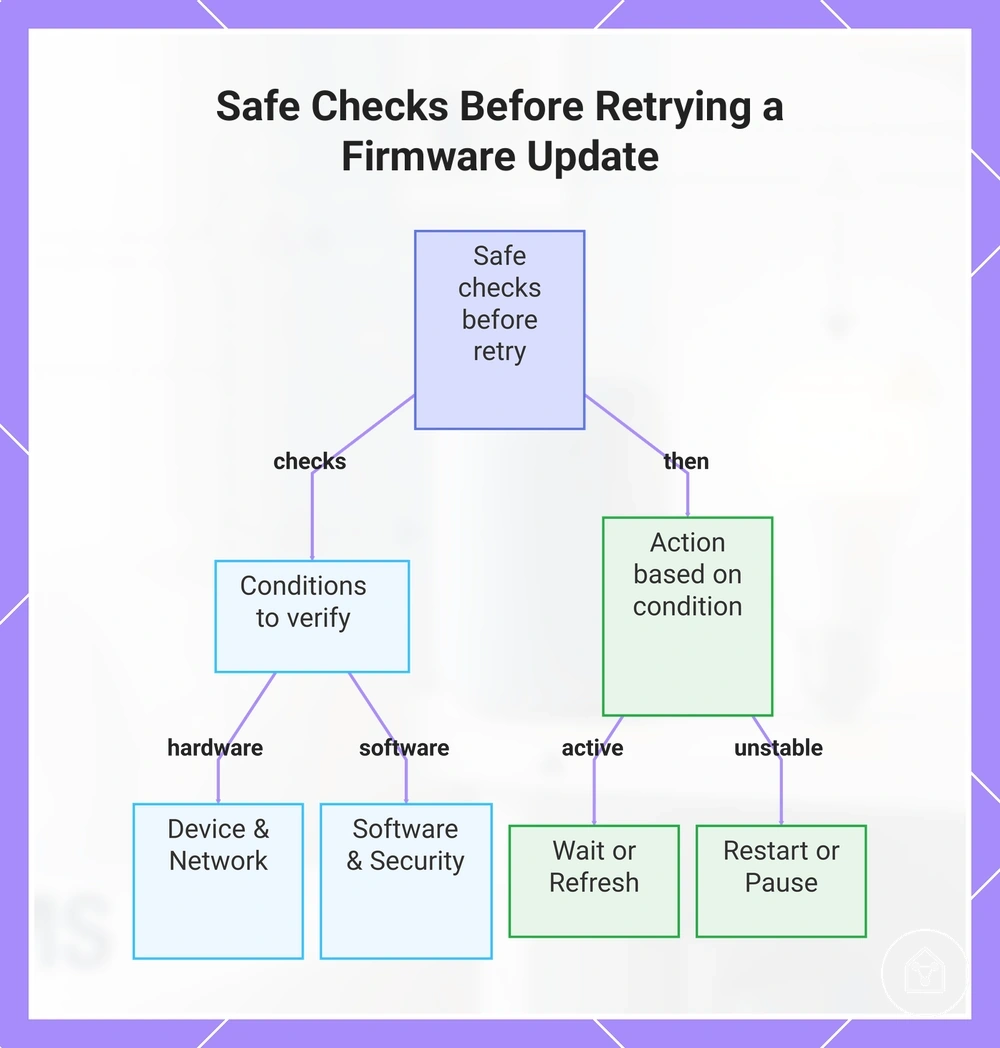
Waiting, refreshing, restarting, or pausing should be selected according to the visible update condition. Waiting is appropriate when the update process still appears active, while refreshing can help when app state does not match the device status. Restarting may be considered when the device is not progressing but remains responsive, while a pause is safer when power, connection, or firmware indicators remain unstable.
Waiting, refreshing, restarting, or pausing should be selected according to the visible update condition.
This chart shows the conditions to verify before retrying a device update and the appropriate action based on the update state.
Confirming the device, app, hub, and router are ready
Confirming the device, app, hub, and router are ready helps verify that the update path is stable enough before retrying the update. A readiness check reduces the risk of repeating an interrupted firmware process by confirming the main conditions that affect update progress. The correct readiness condition depends on device type, firmware state, update mechanism, and connection path.
The following checks help confirm whether the environment is ready to retry the update.
The following checks help confirm whether the environment is ready to retry the update. Each condition links a readiness factor with the risk it helps reduce before another update attempt.
- Device power: Stable device power reduces the risk of interruption during firmware processing or another retry attempt.
- App update status: A current app update status reduces the risk of using an outdated control path or missing update information.
- Hub online state: A visible hub online state reduces the risk of communication problems between the device and connected controller path.
- Router connection: A stable router connection reduces the risk of connection loss during the update path.
- Account login: Active account login reduces the risk of unavailable update access or missing device controls.
- Nearby placement: Suitable nearby placement reduces the risk of communication issues when signal conditions affect the device type and update mechanism.
Waiting, refreshing, and retrying without interrupting firmware
Waiting or refreshing the app view is safer than interrupting firmware when the update may still be active and the device has not shown a clear stop condition. This low-risk retry path confirms firmware status, checks whether the update is active, and avoids actions that could interrupt firmware applying. Power interruption should not be used while firmware appears to be actively applying because the device may remain in an incomplete state.
The retry sequence below provides a lower-risk path before considering broader recovery actions.
The retry sequence below provides a lower-risk path before considering broader recovery actions. Each step includes an action, the condition to check, and a stop-signal that indicates when to pause rather than continue.
- Wait and check firmware status: Allow the current update process to continue while checking firmware status for signs that the update is still active. Stop if the update active indicator shows ongoing firmware application.
- Refresh the app view: Use an app refresh when delayed app status may not match the device state. Stop if the app continues showing an unstable update condition or incomplete status.
- Confirm the update state: Verify whether firmware status shows completion, an update active state, or a condition requiring another retry. Stop if firmware applying still appears active.
- Retry based on timing: Retry the update only when retry timing matches the current update condition and the update path appears stable. Stop if the same interruption condition returns.
Some devices may reboot, disappear temporarily, or show delayed app status during firmware application. A temporary status change can occur while a device completes firmware applying, but the device should return to a stable state before further action. The correct retry decision depends on device type, firmware state, app behavior, hub path, network condition, and recovery history.
Fixes for devices not working after an update
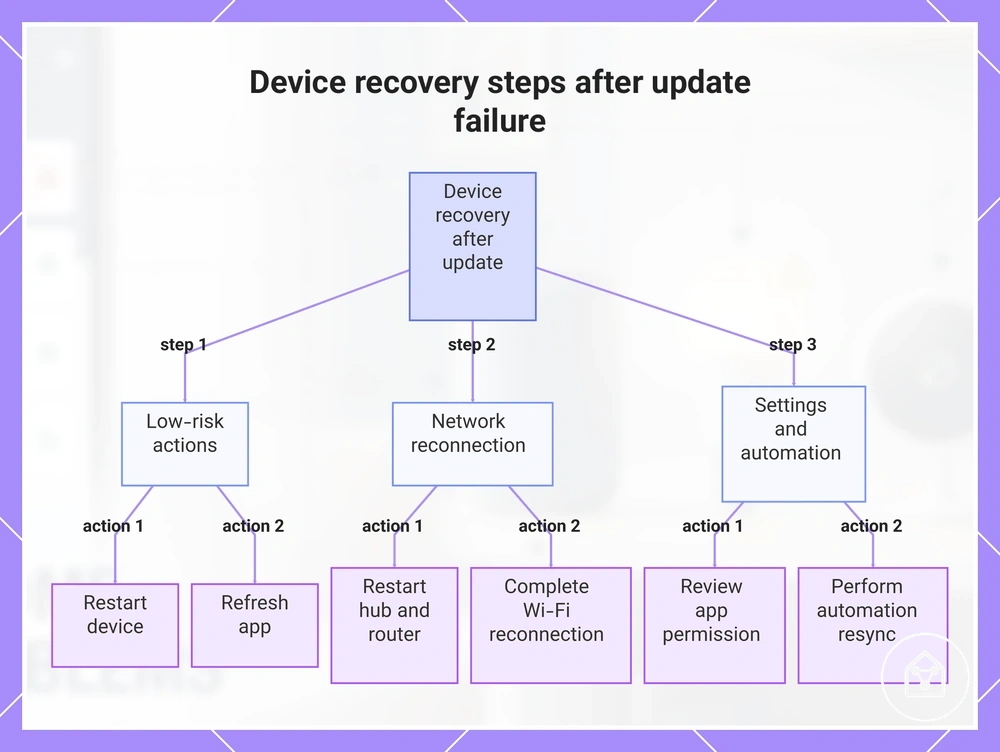
Fixes for devices not working after an update should move from low-risk recovery actions to more disruptive actions only when earlier steps do not restore control. A restart, app refresh, or connection check can help identify whether the device is in a temporary post-update state before changing deeper settings. The recovery order reduces unnecessary changes while the device update condition is still being evaluated.
The following recovery steps move from simple status checks to broader reconnection actions.
The following recovery steps move from simple status checks to broader reconnection actions. Each step includes an action, what to check, and what the result means before continuing to the next recovery stage.
- Restart the device: Restart the device and check whether normal response returns after the post-update state refreshes. If the device remains not responding, continue with the next recovery step.
- Refresh the app: Perform an app refresh and check whether the displayed device status matches the actual device response. If the app still shows incorrect control information, review the connection path.
- Restart the hub: Perform a hub restart and check whether the device appears correctly in the device list. If multiple devices remain unavailable, the issue may involve the hub connection path.
- Restart the router: Perform a router restart and check whether the network connection is restored. If the device still cannot reconnect, continue with Wi-Fi reconnection checks.
- Complete Wi-Fi reconnection: Check the Wi-Fi connection and reconnect the device path when required. If communication returns, verify that device control is restored before continuing.
- Review app permission: Check app permission and account access conditions that affect device control. If control returns but routines remain affected, continue with automation resync.
- Perform automation resync: Complete automation resync and check whether rooms, routines, and permissions match the expected device state. Stop further changes if the recovery path has not identified the cause.
A single-device failure after an update may require a device-level recovery check, while a hub-related failure can affect multiple connected devices through the same control path. An app-control failure may show incorrect status in the app while the device itself remains responsive. These scenarios require different recovery actions, so one device not working after an update does not automatically indicate a wider system failure.
An app-control failure may show incorrect status in the app while the device itself remains responsive.
This chart shows the three recovery phases for devices not working after an update, progressing from low-risk actions to advanced settings checks.
Restarting the device, app, hub, and router
The restart order helps clear temporary post-update control or communication faults by moving through the app, device, hub, and router in a staged recovery path. A staged restart can help recover control when a temporary fault affects the connection path after an update. The order matters because each component may need to rebuild its status before the next recovery step is checked.
Each step focuses on one local restart action and includes a status recheck before continuing.
The following restart order moves from the lowest-impact action to broader connection recovery. Each step focuses on one local restart action and includes a status recheck before continuing.
- App close and reopen: Close and reopen the app, then perform a status recheck to see whether device control returns. If the device remains unavailable, continue with the device power cycle.
- Device power cycle: Complete a device power cycle and check whether the temporary fault clears after the device reconnects. If the device remains not responding, continue with the hub restart.
- Hub restart: Perform a hub restart and check the device status after the hub rebuilds its connection state. If the device status remains unavailable, continue with the router restart.
- Router restart: Complete a router restart and check whether the connection path reconnects correctly. If the device remains disconnected, continue with the final status recheck.
- Status recheck: Review the app and device status after the staged recovery process completes. If the hub or router has recently restarted, allow time for device status to rebuild before taking further action.
Reconnecting the device to Wi-Fi or the control app
Reconnecting is the right path when an updated device remains powered but is no longer controllable through the control app or connected platform. The reconnection process checks Wi-Fi credentials, the app device record, hub pairing mode, account authorization, and device proximity as possible connection criteria. A powered device that is not controllable usually requires a reconnection check before broader recovery actions are considered.
The following reconnection checks focus on restoring app control without moving into a full setup process.
The following reconnection checks focus on restoring app control without moving into a full setup process.
- Wi-Fi credentials: Check the saved Wi-Fi credentials and confirm that the device can reconnect to the expected network path. Incorrect credentials can prevent reconnecting while the device remains powered.
- App device record: Review the app device record in the control app and confirm that the device status matches the current device state. A stale record can prevent normal app control after an update.
- Hub pairing mode: Use hub pairing mode when the device requires a controller reconnection path. A successful pairing state can help restore communication between the hub and device.
- Account authorization: Check account authorization when device access or control permissions are unavailable. Correct authorization can restore app control when the device remains linked.
- Device proximity: Check device proximity during reconnecting because signal conditions can affect pairing and status updates. The required proximity condition depends on the device type and connection method.
Persistent inability to reconnect may indicate a hub recovery, controller recovery, or firmware recovery condition rather than a simple Wi-Fi issue. When Wi-Fi credentials and app control checks do not restore a controllable state, the remaining recovery path may involve the connected control system or the device update condition.
Resyncing automations, rooms, and device permissions after update
Resyncing automations, rooms, and device permissions after an update helps restore app-level control relationships when a device remains online but no longer works correctly inside routines or scenes. An update can change how the control app connects device state with automation rules, room placement, or permissions. The device can remain visible and connected while still producing an online-but-not-working control outcome.
App-level checks can identify which settings need a routine resync or permission refresh after an update.
App-level checks can identify which settings need a routine resync or permission refresh after an update.
- Automation rules: Review automation rules when routines no longer respond to device state changes. Resyncing automations can restore the connection between device state and expected control outcomes.
- Scenes: Check scenes when grouped actions no longer produce the expected result. A scene refresh can restore the relationship between saved actions and the current device state.
- Room placement: Review room placement when app visibility or room-based controls do not match the device location. Correct room assignment can improve app control visibility.
- Voice assistant access: Check voice assistant access when voice commands no longer control the device. Updated access settings can affect control outcomes through connected assistants.
- Shared users: Review shared users when other approved accounts cannot control the device after an update. A permission refresh can restore the expected access relationship.
- Device permissions: Check device permissions when the device is online but app actions are unavailable. Updated permissions can affect how the control app handles requests.
For example, a smart light can remain online in the control app while a scene fails because an automation rule no longer matches the current device relationship. Resyncing the relevant app settings can restore the routine control outcome without treating the device as disconnected.
When reset or recovery becomes necessary
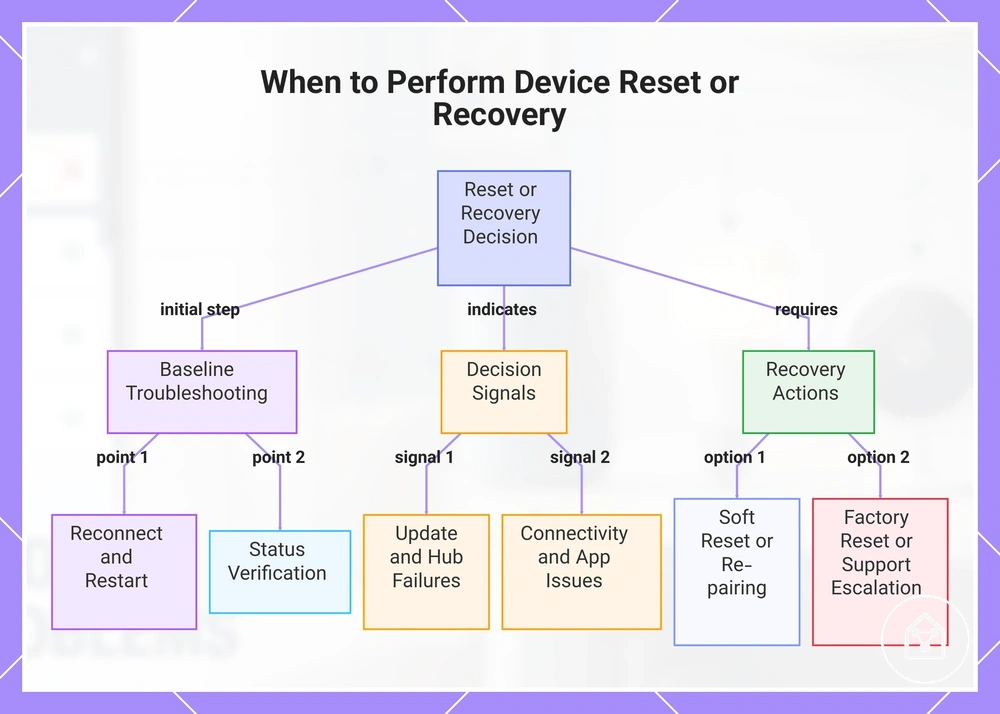
Reset or recovery becomes necessary when lower-risk troubleshooting has not restored the device state and specific decision signals show that a deeper action is justified. Reset should usually follow checks such as reconnecting, restarting, and status verification unless manufacturer recovery prompts require an earlier recovery process. Lower-risk checks remain the baseline because reset actions can change stored settings, permissions, or routines.
Lower-risk checks remain the baseline because reset actions can change stored settings, permissions, or routines.
When reset or recovery becomes necessary, the following decision signals separate normal troubleshooting from conditions that may require a deeper recovery path.
- Repeated update failure: Repeated update failure after normal troubleshooting can indicate that reset criteria or a recovery process should be reviewed.
- Persistent offline status: Persistent offline status after connection and control checks can indicate that the device, controller, or hub requires further recovery evaluation.
- Nonresponsive pairing: Nonresponsive pairing after re-pairing attempts can indicate that the device connection relationship requires a different recovery action.
- Corrupted app record: A corrupted app record can prevent normal device control and may require rebuilding the supported app relationship.
- Hub recovery state: A hub recovery state can affect connected device control when repeated issues continue after local checks.
- Manufacturer recovery prompts: Manufacturer recovery prompts identify when recovery mode or support escalation may be required for the device condition.
Soft reset, factory reset, re-pairing, and support escalation address different conditions. A soft reset is a lower-impact recovery action, while a factory reset may remove stored settings, permissions, and routines depending on the device. Re-pairing restores the connection relationship, and support escalation is appropriate when manufacturer recovery prompts or repeated issues indicate a deeper recovery condition.
Soft reset, factory reset, re-pairing, and support escalation address different conditions.
This chart shows the initial troubleshooting steps, decision signals that indicate a need for deeper recovery, and the available recovery actions.
Soft reset before factory reset
A soft reset should usually be tried before a factory reset because it provides a lower-impact recovery step for temporary post-update faults. A power cycle, app restart, hub refresh, and status check can help determine whether the device state can recover without moving to more disruptive actions. Preserved settings should be treated as a qualification rather than a guarantee because device models and platforms handle reset actions differently.
The following sequence focuses on simple recovery actions before deeper reset options are considered.
The following sequence focuses on simple recovery actions before deeper reset options are considered.
- Power cycle the device: Complete a power cycle and perform a status check to see whether the device returns to normal control. If the temporary fault remains, continue with the next step.
- Complete an app restart: Restart the app and check whether the control view reflects the current device state. If control does not return, continue with the hub check.
- Perform a hub refresh: Refresh the hub connection and check whether the device state is recognised again. If the device remains unavailable, further recovery steps may be required.
- Follow manufacturer-specific reset indicators: Review manufacturer-specific reset indicators when the device model has dedicated reset behaviour. These indicators determine whether a soft reset, factory reset, or another recovery action matches the device condition.
Factory reset and re-pairing after update failure
Factory reset and re-pairing are appropriate when an update failure leaves the device unusable or unrecoverable after lower-risk recovery steps have not restored control. A factory reset can remove or rebuild the device relationship with the control system, so the action should be considered when the existing connection state, app record, or pairing relationship cannot be restored. The trade-off is that rooms, routines, permissions, and device history may require restoration after the reset process.
The following process separates factory reset from a simple reconnect by rebuilding the device relationship in stages.
The following process separates factory reset from a simple reconnect by rebuilding the device relationship in stages.
- Check available settings backup: Review whether settings, rooms, routines, or permissions can be restored after the reset. Available backup options depend on the platform and device configuration, so preservation should not be assumed.
- Complete app removal when required: Remove the app device record only when the supported recovery process requires rebuilding the device relationship. Avoid removing records before confirming that reset and re-pairing are needed.
- Use the reset trigger: Activate the reset trigger according to the device instructions. Reset behaviour, indicators, and button actions can differ by device model.
- Enter pairing mode: Place the device into pairing mode and follow the app prompt to rebuild the connection relationship. The pairing process can require a new device relationship with the control system.
- Complete Wi-Fi reconnection or hub reconnection: Restore the Wi-Fi reconnection or hub reconnection path and check whether the device becomes controllable again. Connection requirements depend on the device and platform configuration.
- Complete automation restoration: Restore automations, rooms, and permissions after the device relationship has been rebuilt. The restored state depends on which settings were retained or removed during the reset process.
Factory reset does not represent the same action as re-pairing. Re-pairing rebuilds the connection between the device and control system, while a factory reset can remove stored relationships before rebuilding them. If manufacturer-specific recovery prompts indicate a recovery mode or different reset process, follow those instructions because reset behaviour can vary by device model.
Hub or controller recovery after repeated update issues
Hub recovery or controller recovery becomes relevant when repeated update issues affect multiple devices or continue after individual device checks do not restore normal update behaviour. A single device issue can point to the device itself, while repeated failures across multiple devices can indicate a controller or hub-related update path condition. The key signal is a repeated update pattern rather than a general hub performance concern.
The key signal is a repeated update pattern rather than a general hub performance concern.
The following diagnostic checks connect hub or controller conditions with repeated update failure patterns.
- Hub power: Check hub power when multiple devices show repeated update failures. A hub power condition can affect whether connected update processes continue correctly.
- Controller firmware: Review controller firmware status when repeated update issues occur across devices. A controller firmware condition can affect update handling through the hub.
- App connection: Check app connection when the control app cannot display reliable hub or device update status. The app connection state helps separate control path issues from device-specific issues.
- Local network access: Review local network access when the hub cannot communicate with connected devices during an update process. This check applies to the update path rather than general network optimisation.
- Device roster: Check the device roster when multiple devices show repeated failures together. A shared device pattern can provide evidence of a controller-related recovery state.
Controller recovery should remain tied to update failure evidence rather than general hub optimisation. If repeated failures continue after hub and controller checks, manufacturer support guidance may be required for the specific recovery boundary.
When hardware replacement or support is justified
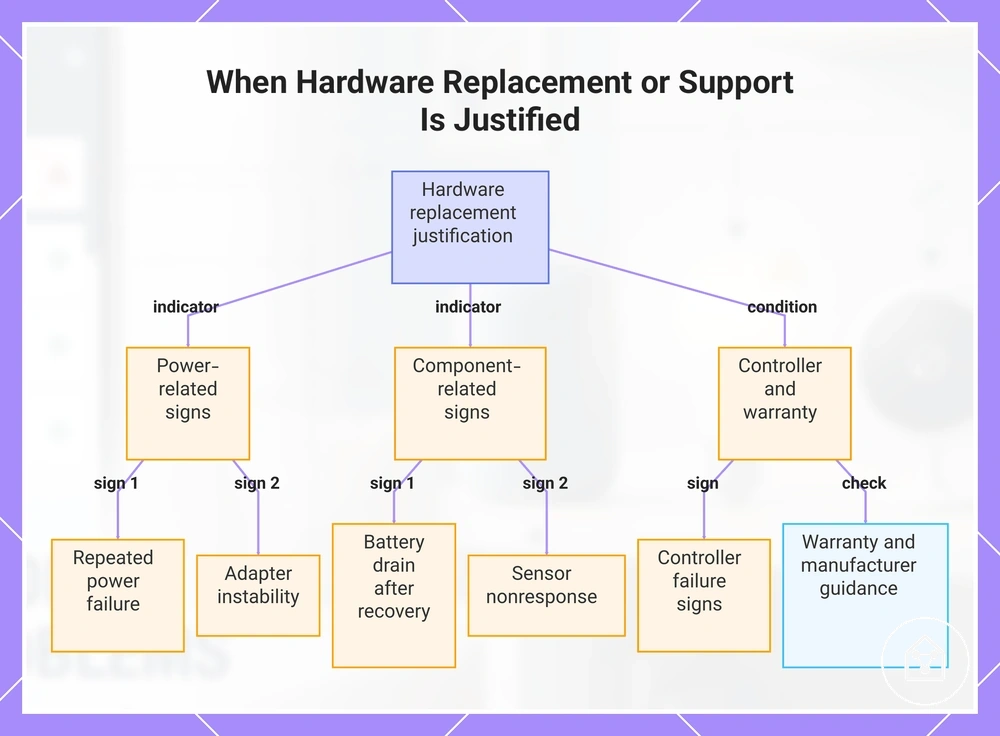
Hardware replacement or support is justified when persistent evidence shows that more retries are unlikely to resolve the condition and manufacturer guidance does not provide a suitable recovery option. A single failed update does not establish a hardware issue because firmware state, interruption conditions, or connection paths can affect the outcome. Persistent evidence from repeated failures, hardware signs, or support guidance should determine the replacement decision.
Persistent evidence from repeated failures, hardware signs, or support guidance should determine the replacement decision.
When hardware replacement or support is justified, the following criteria separate hardware signs from temporary update conditions.
- Repeated power failure: Repeated power failure during normal device operation can indicate a hardware sign when supported power checks do not resolve the issue. Support evaluation may be appropriate when the same failure continues.
- Battery drain: Battery drain that continues after update recovery checks can indicate a hardware condition requiring further assessment rather than repeated update attempts.
- Adapter instability: Adapter instability that repeatedly interrupts device operation can indicate a power-related hardware sign that requires manufacturer guidance.
- Sensor nonresponse: Sensor nonresponse after supported recovery steps can indicate a hardware issue when the device no longer responds as expected.
- Controller failure: Controller failure signs can justify support escalation when update-related functions cannot be restored through supported recovery actions.
- Warranty status and manufacturer recovery guidance: Review warranty status and manufacturer recovery guidance before considering hardware replacement. Official recovery options may still apply after firmware interruption or a failed update process.
A device that appears bricked after firmware interruption is not automatically beyond recovery. A manufacturer recovery option or support path may still be available depending on the device condition and the documented recovery process.
A device that appears bricked after firmware interruption is not automatically beyond recovery.
This chart shows the hardware signs and checks that justify hardware replacement or support, based on persistent evidence rather than a single failure.
Battery, adapter, sensor, or controller signs that persist after recovery
Persistent hardware signs matter after recovery attempted steps have failed to restore normal device behaviour. Battery behavior, adapter output symptoms, sensor response, and controller access provide evidence for separating a hardware clue from a recoverable firmware or app problem. The decision threshold is persistent evidence rather than a single failed update event.
The decision threshold is persistent evidence rather than a single failed update event.
The following checks connect each part or symptom with its condition, meaning, and next decision.
- Battery behavior: Continued battery drain or abnormal battery behavior after recovery can indicate a persistent sign that requires further assessment. A repeated battery-related issue after recovery attempts may point toward a part issue rather than a temporary update state.
- Adapter output symptoms: Repeated power interruption or adapter output symptoms after recovery can indicate a power-related hardware clue. Manufacturer guidance can help determine whether the condition requires support evaluation.
- Sensor response: Sensor response that remains unavailable after recovery steps can indicate a hardware sign when device status and expected behaviour no longer match. A firmware or app problem should still be considered when recovery options remain available.
- Controller access: Controller access that cannot be restored after recovery attempts can indicate a controller-related condition. Further support may be appropriate when the control path remains unavailable.
- Repeated dropouts: Repeated dropouts after recovery can indicate a persistent sign that requires diagnosis rather than assuming the update caused permanent damage.
- Hold pairing: Failure to hold pairing after supported recovery actions can indicate a connection or hardware condition that needs evaluation alongside firmware and app checks.
For example, a device that remains unavailable after an update may still recover when an app or firmware condition is corrected, while a device with continued battery behavior problems or sensor nonresponse after recovery attempts may show a stronger hardware clue. Persistent signs should be separated from recoverable firmware or app problems before further support decisions are made.
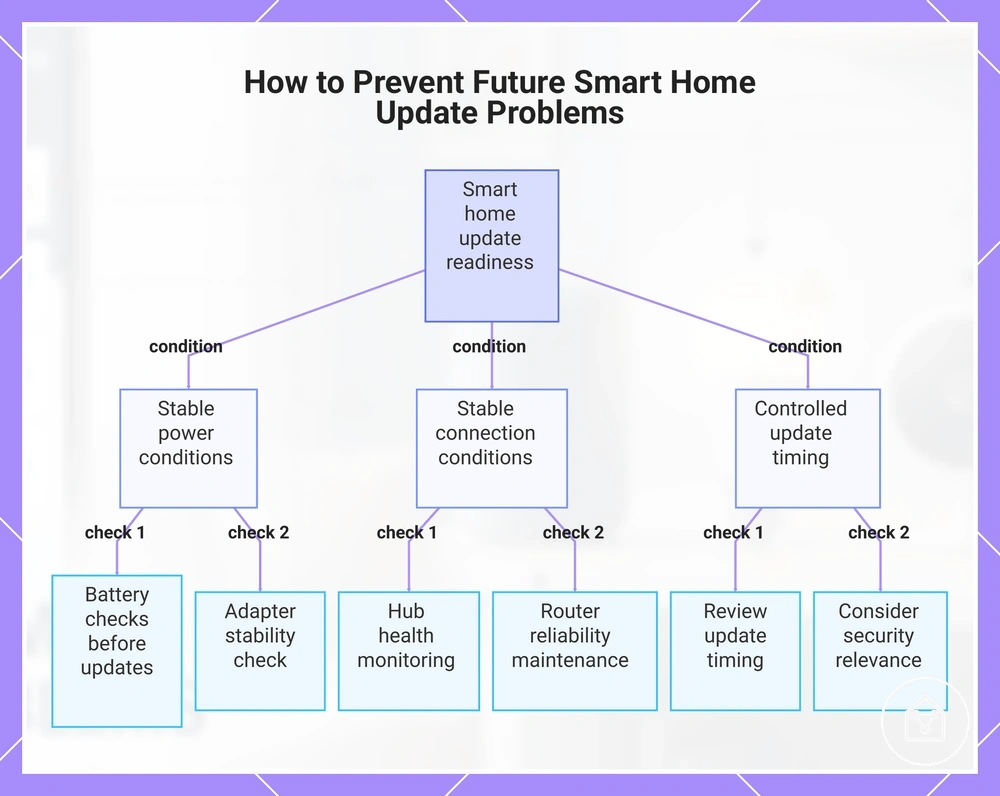
Preventing future smart home update problems
Preventing future smart home update problems depends on stable power, stable connection conditions, and controlled update timing before firmware changes are applied. Update readiness improves when maintenance habits support battery checks, adapter stability, hub health, and reliable device communication. These recurring habits help reduce avoidable update problems by preparing the device environment before firmware changes occur.
These recurring habits help reduce avoidable update problems by preparing the device environment before firmware changes occur.
The following maintenance checklist organizes the recurring variables that influence firmware maintenance, connectivity, and device stability.
- Update timing: Review update timing before applying firmware changes because waiting for vendor guidance can be appropriate when the update state or device condition is unclear.
- Battery checks: Complete battery checks before updates on battery-powered devices because unstable power conditions can interrupt update readiness.
- Adapter stability: Check adapter stability because inconsistent power conditions can affect firmware maintenance and update completion.
- Hub health: Monitor hub health because controller status and device relationships can affect update success across connected devices.
- App updates: Keep app updates current because the app can affect firmware prompts, device status, and update readiness.
- Router reliability: Maintain router reliability because connection stability can affect communication during firmware updates.
- Automation backup: Maintain automation backup when available because routines, rooms, and settings may need restoration after certain device changes.
- Security relevance: Consider security relevance with firmware maintenance because update timing can involve both device stability and security-related changes.
Update-now, wait, or check vendor guidance decisions should be based on the current device condition and available information. Immediate updates may be appropriate when power, connection, and update guidance are clear, while waiting can be suitable when the update state requires more review. For broader maintenance and firmware updates, vendor guidance can help determine when firmware maintenance should proceed or when additional checks are needed.
Update-now, wait, or check vendor guidance decisions should be based on the current device condition and available information.
This chart outlines the three key conditions for preventing smart home update problems: stable power, stable connection, and controlled update timing, along with the essential checks under each.