Smart Home Devices Not Working
Smart home devices not working are usually linked to power, network, hub, app, account, automation, device-condition, or update-related issues rather than one universal fault. Troubleshooting starts by identifying whether a device is offline, not responding, disconnected, or failing only during a specific control action. The likely cause depends on the device type, communication method, hub or bridge setup, app status, firmware state, and home network conditions.
For broader context on device categories and related decision factors, see the smart home devices hub .
A smart home device may appear offline in an app, show an unavailable status, respond slowly, lose connection after a network change, or stop triggering an automation routine. These symptoms describe what the user sees but do not confirm the exact cause because the same symptom can come from different parts of the system. For broader context on device categories and related decision factors, see the smart home devices hub.
These symptoms describe what the user sees but do not confirm the exact cause because the same symptom can come from different parts of the system.
Troubleshooting works best when checks follow a diagnostic order: verify simple local conditions first, then review the connection path, hub or app communication, automation settings, and update state. Low-risk checks such as confirming power status, reviewing app status, checking Wi-Fi connection, and identifying recent configuration changes can narrow the problem before using a reset or making larger changes. For example, a device that appears connected in the app but does not trigger a routine may have a trigger, condition, or action issue inside the automation rather than a failed device connection.
Smart home device behaviour can differ between ecosystems because Wi-Fi devices, hub-based devices, bridge-connected devices, and app-controlled platforms use different communication paths.
Smart home device behaviour can differ between ecosystems because Wi-Fi devices, hub-based devices, bridge-connected devices, and app-controlled platforms use different communication paths. Brand-specific support instructions may be needed for advanced recovery steps, but this troubleshooting approach helps identify the affected problem layer before moving to those instructions.
Table of Contents
Failure Symptoms Across Smart Home Devices
Failure symptoms across smart home devices narrow the diagnostic direction but do not prove a single cause. Visible states such as offline status, unavailable messages, delayed response, pairing failure, and automation not triggering show which part of the system needs checking before choosing a fix.
Failure symptoms across smart home devices narrow the diagnostic direction but do not prove a single cause.
A smart home device may appear disconnected in the app, stop responding to control commands, or remain visible while an automation routine fails to run. These symptoms provide evidence from the app status and device status, but they do not confirm the exact cause because the issue may exist in the connection path, hub communication, Wi-Fi signal, pairing state, or automation settings.
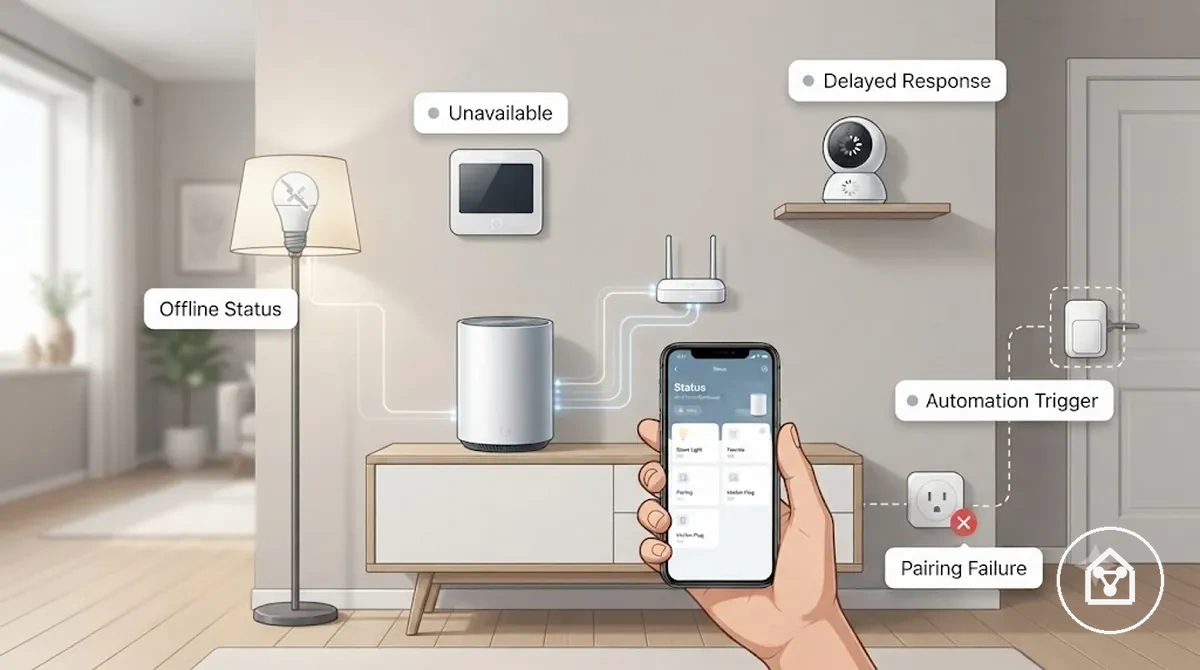
The same smart home device can show different failure symptoms across ecosystems because app labels, control methods, and communication paths differ. For example, a device that appears online in one control app but unavailable in another may indicate an app status, account access, or communication-layer issue rather than a confirmed device failure.
| Symptom | What the user sees | Likely area to check | Next diagnostic direction |
|---|---|---|---|
| Offline status | The app shows the device as offline or disconnected. | Connection path, Wi-Fi signal, hub visibility, or device status | Check whether the device can communicate with the network or hub. |
| Unavailable message | The app cannot access normal device controls. | App status, account access, hub communication, or control connection | Confirm the control app can still identify and access the device. |
| Delayed response | A control command works slowly or the device reacts after a delay. | Router signal, network connection, hub communication, or control path | Review whether connection conditions affect device response. |
| Pairing failure | The device cannot complete connection with the app or hub. | Credentials, hub pairing state, or setup configuration | Check the required pairing method and current connection state. |
| Automation not triggering | A routine, trigger, or scheduled action does not run. | Automation trigger, condition, action, permission, or device status | Review whether the required trigger conditions and actions are active. |
Devices Offline, Unavailable, or Not Responding
Offline, unavailable, and not responding labels describe observable smart home device states, but they do not confirm one specific cause. These labels usually show that communication between the device, app, hub, or network is interrupted or unavailable at that moment.
The app status and device status can provide different clues depending on the ecosystem.
The app status and device status can provide different clues depending on the ecosystem. An offline label may appear when a device loses visibility through a hub or network connection, while an unavailable message may relate to app access, account state, or control communication. A not responding state means a control command did not receive the expected response, but it does not by itself show whether the issue is power, connection, or another communication layer.
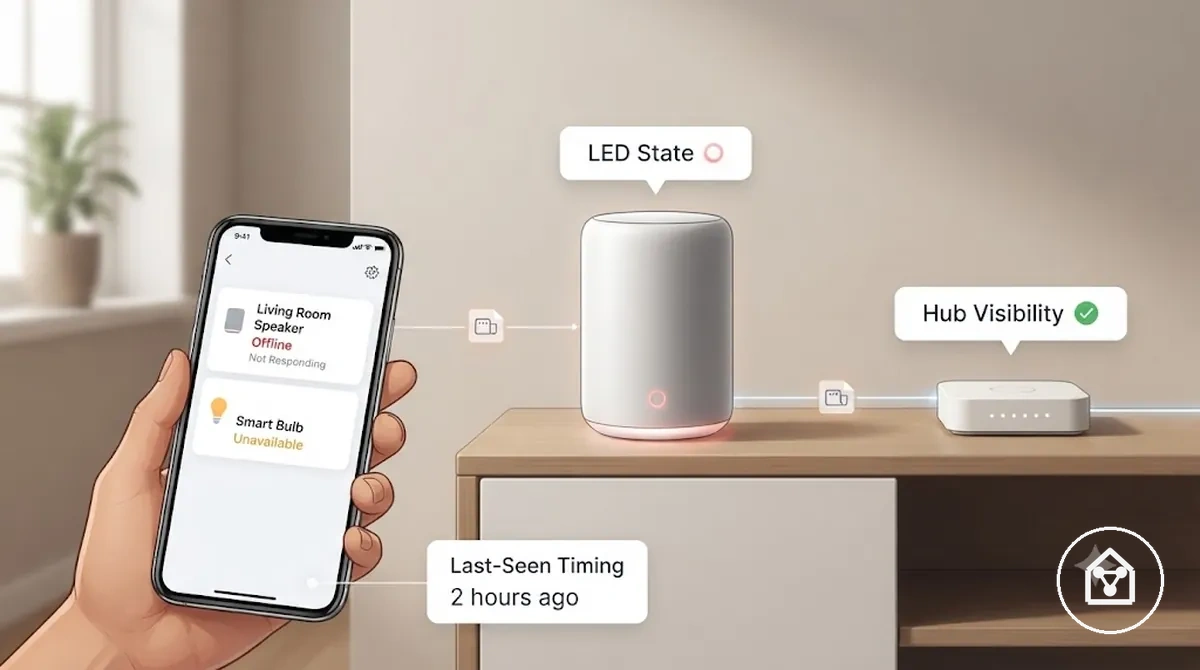
Visible device signals help separate physical conditions from communication conditions. For example, a sensor with no LED state after a power interruption presents a different symptom from a sensor with an active LED state while the app shows it as unavailable. Checking LED state, hub visibility, and last-seen timing provides local clues before investigating broader causes.
- App status: Labels such as offline or unavailable describe what the control app can access, but they do not confirm the physical condition of the device.
- Device status: LED state, visible activity, and control response provide clues about whether the device is powered or communicating.
- Hub visibility: A missing device in the hub connection layer suggests a communication path issue rather than a confirmed hardware failure.
- Control response: A failed command or delayed response shows that communication between the app and device needs checking.
- Last-seen timing: Recent or older activity records indicate when communication may have stopped and help narrow the diagnostic direction.
Devices Connected but Not Triggering Automations
A connected smart home device can still fail to trigger an automation when the device connection and automation rule state do not align. A connected status shows that the device can communicate with the system, but it does not confirm that the required trigger, condition, permission, schedule, or action path is ready to run.
Checking these local rule elements helps separate an automation failure from a device connection issue.
The automation rule, trigger, condition, and action each provide a separate checkpoint when a routine or scene fails. For example, a motion sensor can appear connected in the app while a routine does not run because the trigger event is not detected, the condition does not match, or the action target is unavailable. Checking these local rule elements helps separate an automation failure from a device connection issue.
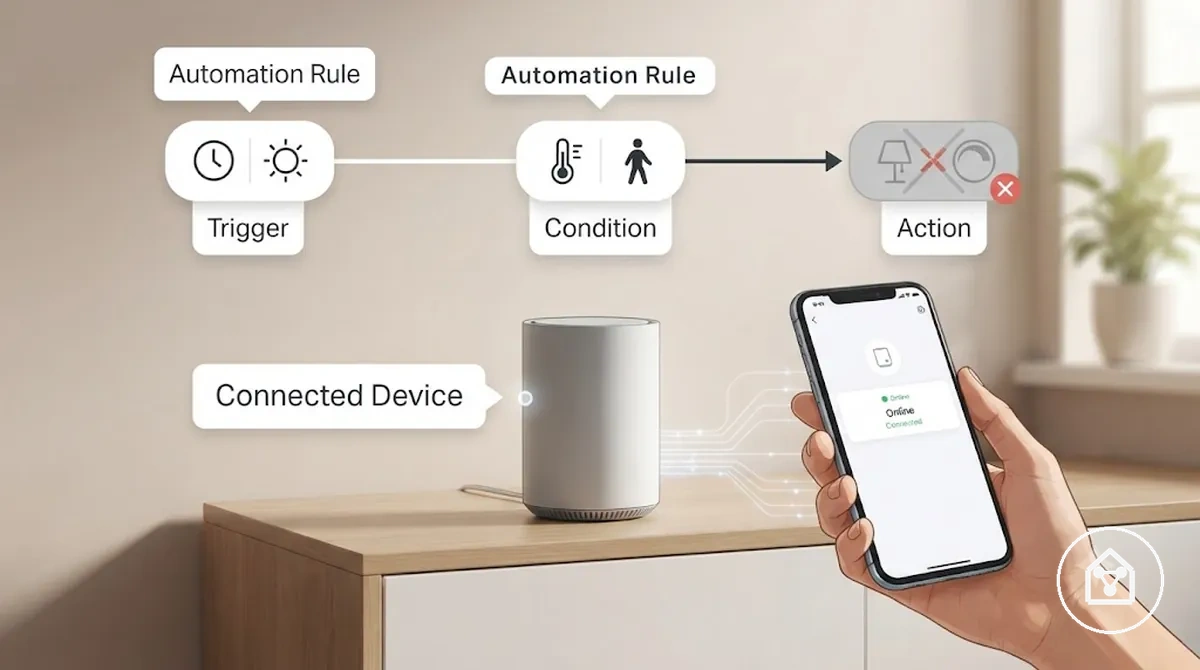
- Trigger state: Check whether the event that starts the automation is detected by the device, routine, or scene trigger.
- Condition match: Verify that the required condition value, such as time, device state, or room status, matches the automation rule.
- Permission: Confirm that app permission and account access allow the automation to control the intended device.
- Schedule: Review whether the schedule allows the routine or scene to run at the expected time.
- Action target: Check that the action points to the correct device, room assignment, or selected state.
A connected device problem is not always a connection problem because the failure can occur inside the automation logic. This section focuses on local troubleshooting checks rather than rebuilding complex routines or designing advanced automation systems.
Common Causes of Smart Home Device Problems
Common causes of smart home device problems usually fall into power state, wireless path, hub communication, app access, account state, or firmware condition categories. These categories help separate a local device fault from a system-level fault before selecting a troubleshooting direction.
The affected component and its condition provide clues about the likely cause.
The affected component and its condition provide clues about the likely cause. A device-side issue may involve power state, battery, adapter, or device condition, while a network-side issue may involve Wi-Fi signal, router connection, or wireless path stability. Control-layer problems can involve hub communication, app access, account permissions, or cloud connection, while firmware condition can affect compatibility and response after an update or version change.
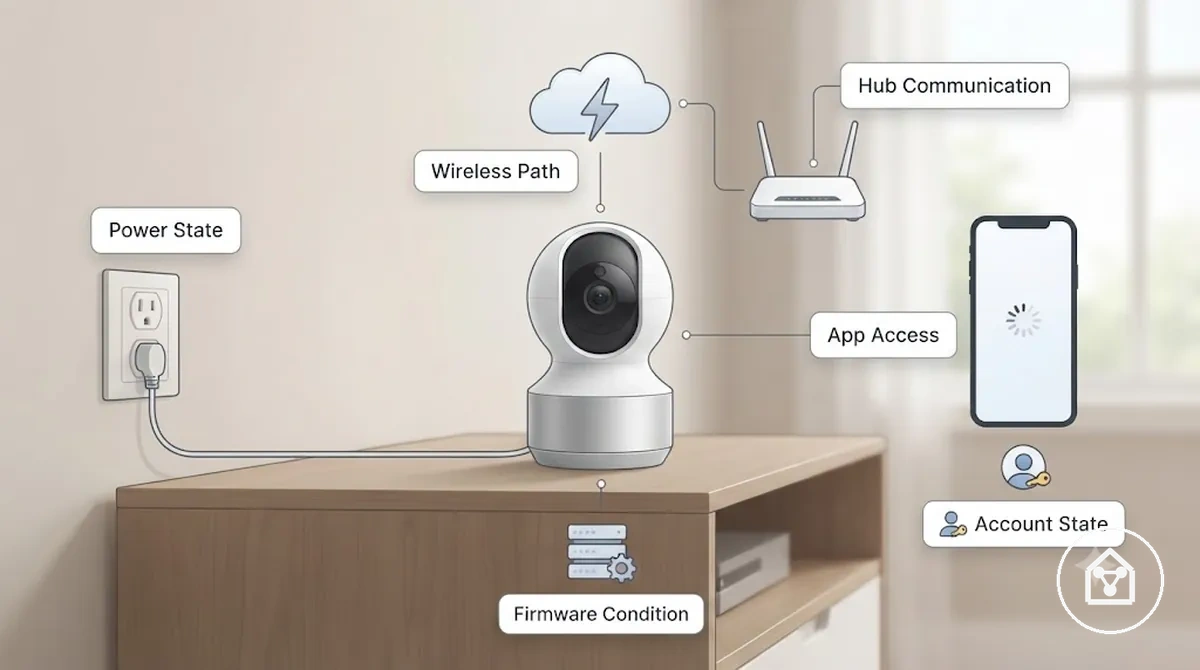
| Cause category | Component involved | Condition to check | Possible effect |
|---|---|---|---|
| Power state | Battery, adapter, outlet, or device power input | The device has power and shows expected local status indicators | The device may become unavailable or stop responding when power conditions are interrupted. |
| Wireless path | Wi-Fi, router, signal, or network band | The device maintains a stable connection path to the network | The device may appear offline or show delayed response when communication is disrupted. |
| Hub communication | Hub, bridge, pairing state, or device visibility layer | The hub can identify and communicate with the device | The device may lose visibility or fail to receive control commands. |
| App access and account state | Control app, permissions, account, or cloud connection | The app can access the correct account and device controls | The device may appear unavailable even when the physical device remains active. |
| Firmware condition | Device firmware, app version, or update state | The device and app maintain compatible software states | The device may show inconsistent response or communication behaviour. |
The same symptom can come from different layers of the smart home system, so a cause matrix identifies likely areas rather than a final diagnosis. For example, an offline device may result from a power state issue, a wireless path problem, or hub visibility loss, and each possibility requires a separate check before confirming the cause.
Power, Battery, and Local Device State
Power, battery, and local device state should be checked before network causes because a device can fail before communication becomes relevant. Battery level, power adapter connection, switch position, sleep mode, indicator light, and reset state provide local clues about the device condition.
Checking local indicators first helps separate a physical device condition from a broader system issue.
Local device state differs between battery sensors, mains-powered devices, plugs, and hubs because each uses a different power method. A low battery sensor may continue showing partial app status while reducing reporting behaviour, while a powered device may remain inactive if the power adapter or switch position prevents operation. Checking local indicators first helps separate a physical device condition from a broader system issue.
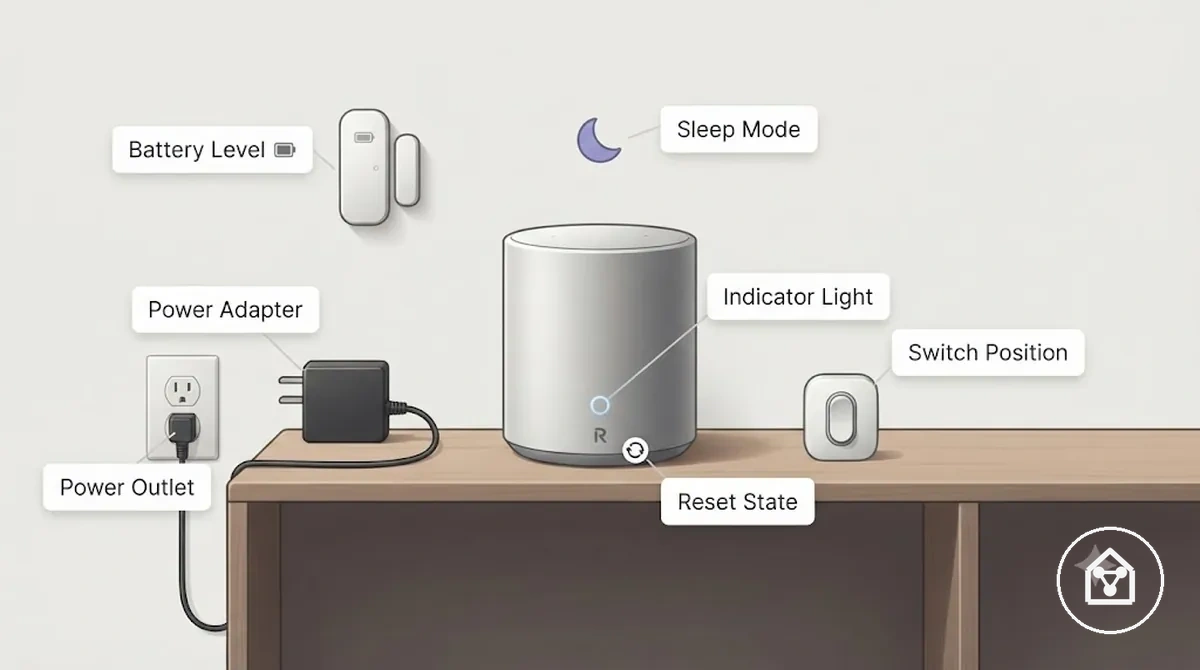
- Battery level: A low battery condition can limit a sensor's response or reporting while the app may still show partial status information.
- Power adapter: The adapter, plug, and outlet connection indicate whether a mains-powered device is receiving power.
- Switch position: A manual switch or physical button position can interrupt normal device operation even when the device remains connected.
- Sleep mode: A device in a low-power state may delay updates until a wake event occurs or expected activity is detected.
- Indicator light: The LED state or status light provides a local clue about whether the device has power or is responding.
- Reset state: The current reset state can indicate whether a device is in a changed configuration state before further checks.
Wi-Fi Signal, Router Load, and Network Band Issues
Wi-Fi signal, router load, and network band conditions can affect whether an otherwise functional smart home device maintains a reliable connection. Weak wireless signal, high router load, or unsuitable network band conditions can contribute to offline status, delayed response, or delayed control without confirming a device fault.
Network conditions can affect devices differently depending on device location and connection method.
Network conditions can affect devices differently depending on device location and connection method. A 2.4 GHz-only device may experience connection issues when the available network band does not match its supported connection method, while a device moved farther from the router may receive a weaker wireless signal. Mesh roaming can also change the access point used by a device, so the next check should focus on the network condition linked to the symptom rather than assuming one cause.
- Wi-Fi signal: Device location, distance, and physical obstacles can weaken the wireless signal and appear as offline status or delayed control.
- Router load: Network congestion from multiple connected devices can delay control commands and reduce response consistency.
- Network band: Band compatibility, including 2.4 GHz support for some devices, can affect whether a device maintains a stable connection.
- Access point: Mesh roaming between access points can change the connection path and affect device availability or app status.
- Device location: Moving a device farther from the router or changing its placement can affect connection reliability.
- IP stability: DHCP or IP stability conditions can affect reconnection behaviour and may appear as repeated offline states.
These checks identify possible network conditions without becoming a router configuration guide. For first-time network configuration and connection setup context, see setup issues.
Hub, Bridge, App, and Account Communication Issues
Hub, bridge, app, and account communication issues can interrupt smart home device response even when power and Wi-Fi appear normal. These control-layer problems occur when communication fails between the device, hub, bridge, app, account, or cloud login layer rather than at the local device level.
The communication point involved helps identify where the control-layer problem may occur.
The communication point involved helps identify where the control-layer problem may occur. A hub may lose device visibility, a bridge may fail during pairing, an app may lack the required app permissions, or account linking may prevent access to the correct controls. Checking each layer separates a hub, app, or account issue from other possible causes before considering an update-related boundary such as an app version change.
| Communication point | What can fail | User-facing symptom | Safe check |
|---|---|---|---|
| Device-to-hub | Hub status, bridge pairing, or device visibility | The device appears offline or is missing from the hub view | Check whether the hub or bridge still identifies the device. |
| Hub-to-app | Connection between the hub or gateway and the control app | The app shows unavailable status or does not display current device information | Check whether the app can access the hub connection layer. |
| App-to-account | App permissions, account linking, or account authorization | The user cannot access device controls or the device appears unavailable | Confirm the app has access to the correct account and permissions. |
| App-to-cloud | Cloud login or platform access layer | Device response may be delayed or unavailable through the app | Check cloud login access and account status before assuming a device fault. |
A platform outage can affect app access and device response, but an unavailable status alone does not confirm an outage because visibility differs by ecosystem. If the issue appears after an app update or firmware update, check the relevant version change as a boundary cue rather than treating it as the only cause.
Basic Checks Before Resetting or Replacing Anything
Basic checks should come before resetting or replacing anything because low-risk verification can prevent lost pairings, unnecessary configuration changes, and avoidable replacement decisions. These first checks help identify whether a problem relates to power, battery, device state, account access, or recent changes before using more disruptive actions.
Each check provides a signal rather than a guaranteed fix or final diagnosis.
Each check provides a signal rather than a guaranteed fix or final diagnosis. A failed check may suggest the next area to investigate, while a successful check can rule out some common conditions without proving the device is fully healthy. Reset or replacement decisions should follow the available evidence, device condition, and recurring failure pattern.
- Power: Verify that the device has power and the expected indicator state. A missing response may suggest a local power or device-state condition.
- Battery: Check the battery condition where applicable. A low battery level may affect reporting or response while partial app status remains visible.
- Distance: Check whether device location or distance from the connection point has changed. A changed position may suggest a connection condition rather than a device failure.
- Router status: Verify that the home network is available. A router issue may suggest checking network conditions before changing device settings.
- Hub status: Check whether the hub or bridge still shows the device connection. Missing visibility may suggest a communication-layer issue.
- App login: Confirm that the app can access the correct account. Login or account access issues may affect device controls.
- Device naming and room assignment: Verify that the device name and assigned location match the expected setup. Changes may affect automations or identification.
- Paused automations: Check whether routines or automations are paused. A paused automation may explain missing actions without indicating a device fault.
- Firmware alerts: Review whether the app or device shows an update-related notice. Recent firmware changes may provide a clue about a new failure pattern.
- Recent network changes: Consider whether router, Wi-Fi, or account changes occurred before the issue appeared. A recent change may help explain the timing of the problem.
If basic checks do not identify the cause, the next step depends on the symptom pattern and device condition. Repeated failures or physical condition concerns may justify maintenance checks, while reset actions should be considered only after simpler causes have been reviewed.
If basic checks do not identify the cause, the next step depends on the symptom pattern and device condition.
This chart shows the essential low-risk checks to perform before resetting or replacing a device, helping to identify common issues without disruptive actions.
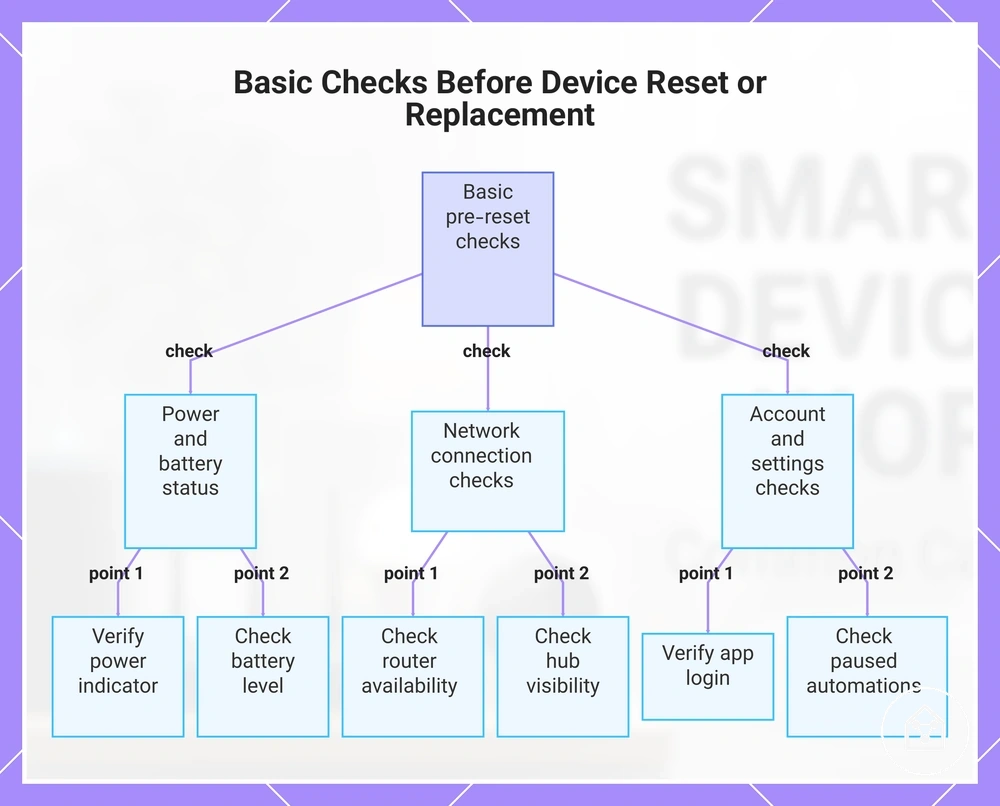
Connection Fixes for Offline or Unresponsive Devices
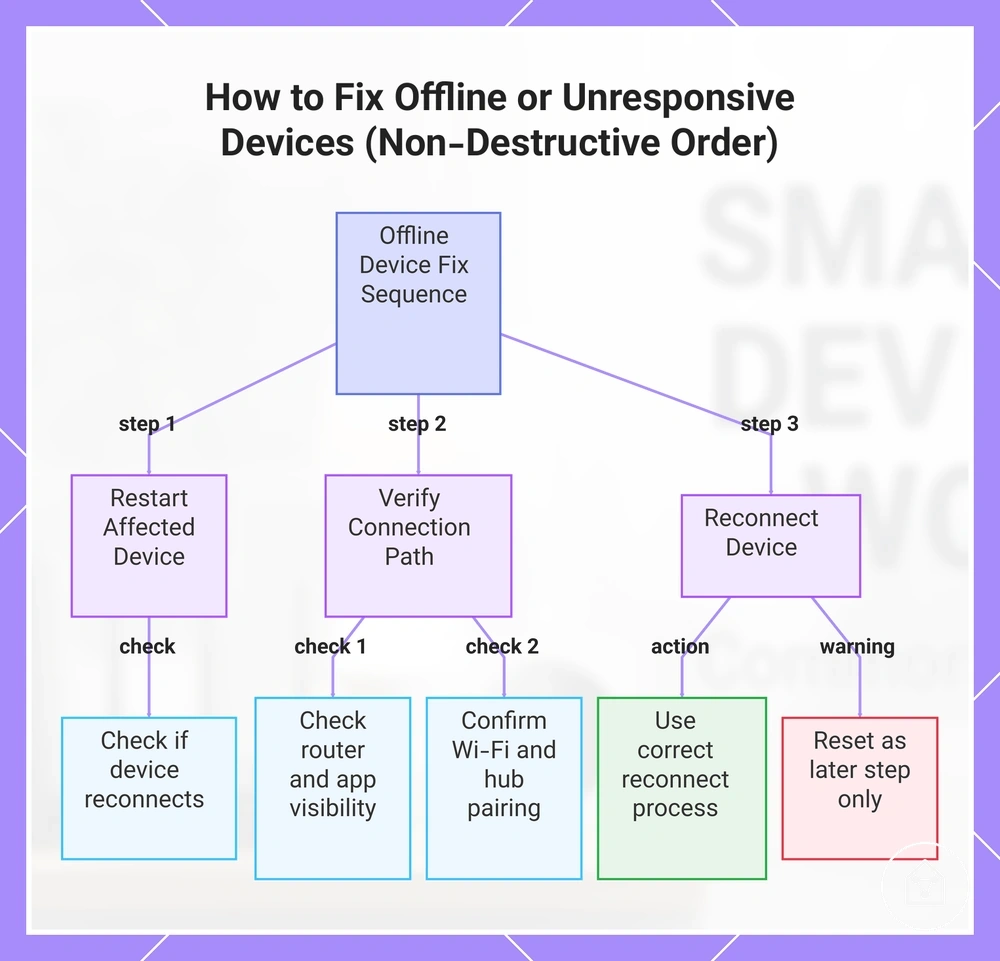
Connection fixes for offline or unresponsive devices should move from restart to reconnect before using reset actions. This non-destructive order helps identify whether the router, hub, affected device, control app, Wi-Fi credentials, or pairing state is preventing normal communication without immediately removing saved settings.
The recovery path depends on the device ecosystem, device type, and communication method.
The recovery path depends on the device ecosystem, device type, and communication method. A Wi-Fi device may require a different reconnect process from a device that uses a hub or bridge, and a control app refresh may show a different diagnostic outcome depending on the connection layer involved. These steps focus on connection recovery rather than factory reset or first-time setup procedures.
- Restart the affected device: Restart the offline or unresponsive device and check whether it returns to normal response. If the device reconnects, the issue may have been a temporary device-state interruption.
- Check the router connection: Confirm that the router is available and that the device can access the expected network. If the router works for other devices but one device remains offline, the issue may be isolated to that device connection path.
- Refresh the control app: Refresh the control app and review the device list or current status. If the app updates after refresh, the previous issue may have involved app visibility rather than the device connection itself.
- Confirm Wi-Fi credentials: Verify that the affected device still uses the correct Wi-Fi credentials when reconnecting is required. Changed network details may prevent the device from restoring its previous connection state.
- Check hub pairing state: Review whether the hub or bridge still shows the device pairing state and visibility. Missing pairing information may suggest a hub communication issue.
- Reconnect the device: Use the appropriate reconnect process for the device ecosystem after checking the likely connection point. A successful reconnect can restore communication, while failure provides further diagnostic information.
If connection fixes do not resolve the offline or unresponsive state, the next action depends on the device type, ecosystem, and communication method. Reset actions should remain a later step because they may remove saved connections or pairing information.
Reset actions should remain a later step because they may remove saved connections or pairing information.
This chart shows the recommended non-destructive steps to diagnose and reconnect an offline device, starting with restart and moving to reconnect before any reset action.
Restarting the Router, Hub, and Affected Device
Restarting the router, hub, bridge, and affected device in the correct order can help isolate a temporary connection failure without changing saved settings. Restarting shared control points before the device provides a clearer way to check whether the issue is related to the network, paired devices, or the affected device state.
- Restart the router: Restart the router and wait until the network becomes available again before checking connected devices. If the router status returns normally, the temporary connection failure may have involved the shared network point.
- Restart the hub or bridge: Restart the hub or bridge after the router is active and wait for paired devices to become visible again. A restored device list may suggest that the temporary issue involved the hub or bridge connection layer.
- Restart the affected device: Restart the offline or unresponsive device and check its indicator state or response after the waiting interval. A changed status may suggest that the device had a temporary connection or state interruption.
- Refresh the app: Perform an app refresh after the router, hub, and affected device have restarted. Updated device visibility in the control app can provide a diagnostic signal about whether communication has returned.
- Check the final status: Allow the device enough time to update its status before taking further action. A battery device may require a wake-up event, such as sensor movement or a button press, before its response appears after restarting.
Restarting can help identify temporary connection failures, but it is not a substitute for diagnosing persistent faults. Repeated restarts without a change in device behaviour may indicate that another connection condition requires review.
Reconnecting Devices to Wi-Fi, Hub, or Control App
Reconnecting devices to Wi-Fi, a hub, or a control app should happen after restart checks but before considering reset actions. The correct reconnecting path depends on the device communication method, including direct Wi-Fi connection, hub pairing, or control app authorization.
The reconnect route depends on which connection layer is affected.
The reconnect route depends on which connection layer is affected. A Wi-Fi device may require updated credentials or band selection confirmation, while a hub-connected device may need pairing mode and device list checks. A control app issue may involve room assignment or account authorization rather than the physical device connection.
- Wi-Fi reconnection: If the device cannot connect to Wi-Fi, confirm the credentials and band selection conditions. A successful reconnect may restore communication, while incorrect credentials can prevent the connection from being established.
- Hub reconnection: If the device uses a hub or bridge, check whether pairing mode is available and whether the device appears in the hub device list. Missing visibility may suggest that the hub connection needs to be re-paired.
- Control app reconnection: If the device is visible but unavailable in the app, confirm the control app access, account authorization, and app device list. The issue may relate to app access rather than the device connection itself.
- Room assignment check: If the device reconnects but appears in the wrong location, confirm the room assignment inside the control app. A changed assignment may affect how the device is organised and controlled.
- Reset as a later option: If Wi-Fi credentials, pairing mode, device list visibility, and account authorization have been confirmed but reconnection still fails, reset actions can be considered later according to the device ecosystem requirements.
Resetting a Smart Home Device Safely
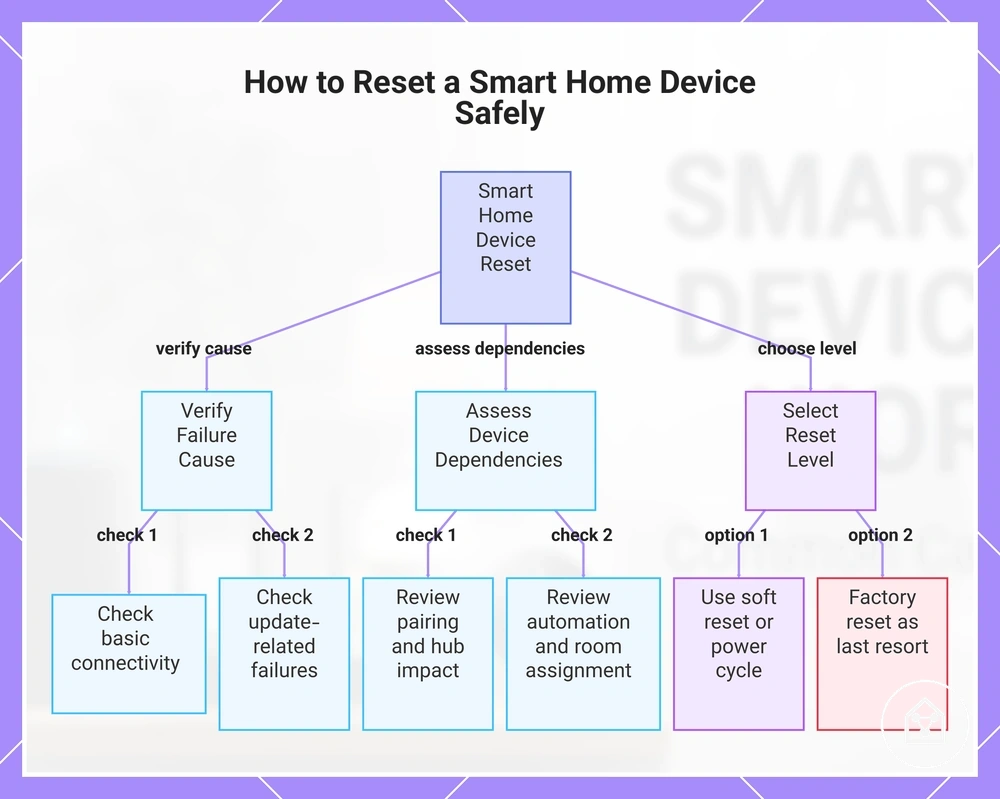
Resetting a smart home device should be considered after basic checks and reconnection attempts have been reviewed because reset actions can remove pairing, automation, or room assignment information. Reset logic helps determine whether a soft reset, power cycle, factory reset, app removal, or hub removal is appropriate for the specific failure condition.
The correct action depends on the device ecosystem and the condition causing the failure.
A soft reset or power cycle may address a temporary state without changing stored settings, while a factory reset is a more disruptive action that can clear pairing information and require re-pairing. App removal and hub removal can also change how the smart home device appears in the control app or hub system. The correct action depends on the device ecosystem and the condition causing the failure.
For example, a factory reset may require re-pairing and reviewing automation settings afterward.
Reset consequences should be considered before taking action because pairing, automation, and room assignment behaviour differs between smart home device systems. For example, a factory reset may require re-pairing and reviewing automation settings afterward. Recent network changes or update-related failures may have another cause that resetting does not resolve.
- Confirm the cause first: Check whether basic checks, reconnecting, and connection conditions have been reviewed before resetting. A reset is more suitable when simpler explanations have been considered.
- Check pairing impact: Review whether the device uses pairing with a hub, bridge, or control app. A factory reset may require re-pairing before normal control returns.
- Review automation impact: Check whether the device is used in automation routines. Reset actions may require automation settings to be reviewed if stored device relationships change.
- Review room assignment: Confirm whether the device location is used for routines or organisation. App removal, hub removal, or re-adding the device may require room assignment checks.
- Choose the reset level: Use a less disruptive option such as a soft reset or power cycle when the condition does not require clearing stored information. A factory reset should remain a later option.
- Check update-related failures: If the issue started after an update or recent network change, review that condition before selecting reset logic. See smart home device update problems for the separate update-related context.
This chart shows the key checks and steps to safely reset a smart home device, including verifying the cause, assessing dependencies, and choosing the appropriate reset level.
Soft Reset, Power Cycle, and Factory Reset Differences
Soft reset, power cycle, and factory reset differ by how much configuration they may change or remove. A soft reset and power cycle usually target a temporary state, while a factory reset can remove stored configuration and require re-pairing. Choosing the correct reset type helps avoid unnecessary configuration changes when a less disruptive option may address the issue.
| Reset type | What it usually changes | What may remain | When it helps | Main risk |
|---|---|---|---|---|
| Soft reset | Clears a temporary state or refreshes device behaviour without performing a full configuration removal. | Pairing, automations, and room assignment may remain depending on the device ecosystem. | Helps when a temporary state affects device response or normal operation. | The underlying configuration or connection issue may remain unresolved. |
| Power cycle | Restarts the device by removing and restoring power to refresh the current operating state. | Existing configuration may remain because no full reset action is performed. | Helps with short-lived response problems or temporary device states. | It may not address issues caused by pairing, automations, or stored configuration. |
| Factory reset | Removes stored configuration and can clear pairing information, requiring re-pairing in many device ecosystems. | Some settings or linked services may require separate review after the reset process. | Helps when a full configuration restart is needed after less disruptive options have been considered. | Re-pairing may be required, and automations or room assignments may need to be configured again. |
When Resetting Helps After Router or Wi-Fi Changes
Resetting or re-pairing may help after router changes or Wi-Fi changes when stored credentials or pairing conditions no longer match the current network state. A changed SSID, password, router replacement, network band, or mesh migration can affect how a smart home device reconnects, but reconnecting stored credentials or updating the connection path may be enough without a full reset.
A network change affects different parts of a smart home system depending on where connection information is stored.
A network change affects different parts of a smart home system depending on where connection information is stored. A device may retain an outdated stored credential after an SSID or password change, while a hub may retain separate pairing information. For example, a Wi-Fi device with old network memory may need credential updates, while a hub-side configuration change may require reviewing the pairing condition before choosing re-pairing.
- SSID change: A new network name can make the stored credential invalid. If the device memory contains the previous SSID, reconnecting credentials may be the first decision before considering re-pairing.
- Password change: A changed Wi-Fi password can prevent the device from authenticating with the network. Updating the stored credential may resolve the connection without removing existing device relationships.
- Router replacement: A router replacement can create new network conditions and may affect device memory or hub pairing conditions. Reconnect decisions should consider whether the device stores Wi-Fi details directly or relies on a hub.
- Network band change: A network band change can affect compatibility and connection when device support or stored connection settings no longer match the new configuration. Reconnecting or re-pairing may be considered after confirming the supported connection method.
- Mesh migration: A mesh migration can change roaming behaviour and hub-side configuration. A device may need reconnecting or re-pairing when the previous connection path no longer matches the new network environment.
Device-Specific Troubleshooting Patterns
Device-specific troubleshooting applies the same diagnostic logic across smart plugs, sensors, hubs, bridges, and locally controlled devices by focusing on how each device type receives power, communicates, and reports state. The device type changes the diagnostic emphasis because a smart plug, sensor, and hub can show similar symptoms through different conditions.
Power, communication, and reporting state provide the next check after identifying the symptom.
Power, communication, and reporting state provide the next check after identifying the symptom. A smart plug may require checking outlet power and switching behaviour, while a sensor may require checking battery condition, signal, or reporting behaviour. Hubs and bridges require attention to paired devices and visibility, while locally controlled devices require checking their local response path.
| Device type | Common symptom | Likely attribute or condition | Next check |
|---|---|---|---|
| Smart plugs | The device does not switch or respond to commands. | Outlet power, pairing condition, or switching state | Check whether the outlet provides power and whether the smart plug communicates with the control system. |
| Sensors | The device stops reporting events or shows delayed updates. | Battery condition, signal path, or reporting state | Check battery status, communication signal, and whether the sensor reports current information. |
| Hubs | Paired devices become unavailable or cannot be controlled. | Hub communication, paired device visibility, or connection state | Check whether the hub can see paired devices and maintain communication. |
| Bridges | Connected devices fail to appear or respond through the bridge. | Bridge communication, pairing state, or device visibility | Check whether the bridge recognises connected devices and maintains the connection path. |
| Locally controlled devices | The device does not respond through local controls. | Local power, device behaviour, or communication path | Check the local device response, power condition, and available control connection. |
Smart Plugs That Will Not Pair or Switch
Smart plug troubleshooting starts with safe checks for pairing, switching, and app control problems. A smart plug may fail to pair or switch when outlet power, manual button state, pairing mode, Wi-Fi band conditions, load type, or app visibility prevents normal communication.
Outlet power and manual controls help separate local power conditions from communication issues.
Outlet power and manual controls help separate local power conditions from communication issues. Pairing mode and Wi-Fi band checks focus on whether the smart plug can connect to the control system, while load type checks help identify switching conditions that may affect device behaviour.
- Outlet power: Check whether the outlet provides power and whether the smart plug shows expected status indicators. If outlet power is unavailable, app control and pairing checks may not reflect the actual device condition.
- Manual button: Check whether the manual button switches the smart plug locally. A working button with failed app control may indicate a communication or pairing condition rather than a power issue.
- Pairing mode: Check whether the smart plug is in pairing mode before attempting to pair it with the control app. Without pairing mode, the app may not detect the device.
- Wi-Fi band: Check whether the smart plug is connected through a supported Wi-Fi band. A band mismatch may prevent pairing or limit app control.
- Load type: Check the connected load type when switching behaviour is inconsistent. Different loads can create different control symptoms, so confirm the condition before further troubleshooting.
- App visibility and safety stop: Check whether the smart plug appears in the app device list. Stop using the smart plug if there is overheating, visible damage, or unsafe outlet behaviour.
Smart Sensors That Stop Reporting or Communicating
Smart sensor troubleshooting starts by checking reporting behavior, battery level, signal path, and trigger conditions before assuming the sensor has failed. A smart sensor may stop communicating or show a delayed status update when it has a missed event trigger, reduced signal path quality, or a condition that affects its reporting cycle.
A sensor that appears correctly installed can still report differently depending on its operating state.
A sensor that appears correctly installed can still report differently depending on its operating state. A low battery level may contribute to missed reports, while distance from the hub or mounting position may affect communication. For example, a sensor that reports only after a state change may appear inactive until the expected event trigger occurs.
- Battery level: Check whether the smart sensor has sufficient battery level for normal reporting. A reduced battery condition may contribute to missed reports or delayed status updates.
- Distance from hub: Check the distance between the sensor and hub when communication is inconsistent. A weaker signal path may contribute to delayed reports or missing app status.
- Mounting position: Check whether the mounting position allows the sensor to detect the intended condition. A changed position may prevent the expected event trigger from occurring.
- Sleep interval: Check whether the smart sensor uses a sleep interval that affects reporting frequency. A sensor may not send continuous updates while waiting for its next reporting period.
- Event trigger: Check whether the required event trigger has occurred. A sensor may report after movement, opening, closing, or another relevant state change rather than continuously.
- Signal path: Check the communication path between the sensor and connected system. A disrupted signal path may prevent the smart sensor from reporting its current state.
Smart Hubs and Bridges That Stop Responding
Smart hub and bridge troubleshooting starts with the shared control point when multiple connected devices appear offline or stop responding together. A smart hub or bridge controls communication between paired devices and the wider system, so a single hub or bridge condition can affect the visibility and status of several connected devices.
Update state should be reviewed when recurring update loops or failed firmware installs are part of the symptom.
Hub power, Ethernet or Wi-Fi status, cloud connection, paired device list visibility, and update state help identify where the response issue occurs. A power or local network condition may block communication, while a cloud connection condition may affect app status without confirming that every paired device has failed. Update state should be reviewed when recurring update loops or failed firmware installs are part of the symptom.
| Hub or bridge check | Condition to inspect | Devices affected | What it suggests |
|---|---|---|---|
| Hub power | Check the indicator state and whether the smart hub or bridge receives power. | Multiple paired devices connected through the hub | A power condition may prevent the hub from controlling or exposing connected devices. |
| Ethernet or Wi-Fi status | Check the network connection and local network visibility of the hub or bridge. | Devices using the same communication path | A local connection condition may block communication between the hub and paired devices. |
| Cloud connection | Check whether the cloud connection is available when app status changes or devices appear offline. | Devices controlled through cloud-connected services | A cloud connection condition may affect app visibility or remote response status. |
| Paired device list | Check whether paired devices remain visible in the hub or bridge device list. | Devices connected through the shared control point | Missing visibility may suggest a pairing or hub communication condition. |
| Update state | Check whether a recurring update loop or failed firmware install is part of the failure pattern. | Devices affected by the update process | An update-related condition may require review before treating the issue as a general communication failure. |
Automation Problems After Devices Appear Connected
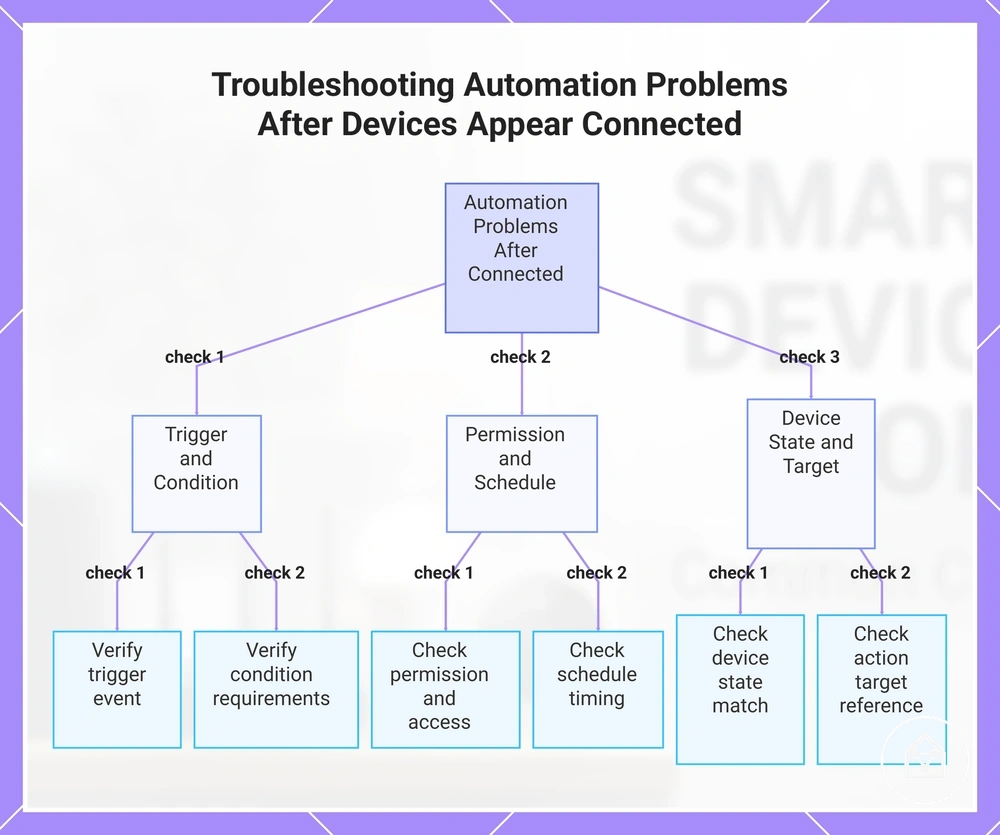
Automation problems can occur after connected devices return online because a connected status does not confirm that an automation rule can execute. Automations still require valid triggers, conditions, permissions, actions, schedule settings, and device state information before the expected outcome can occur.
The action target can also fail when the rule points to a changed device state or an unavailable target.
An automation rule should be checked from trigger to action when a connected device does not produce the expected result. A trigger may fail to occur, a condition may block the rule, permissions may prevent access, or a schedule may not match the required timing. The action target can also fail when the rule points to a changed device state or an unavailable target.
- Trigger: Check whether the automation trigger occurs and whether the connected device reports the required event. A missing trigger event can prevent the automation rule from running.
- Condition: Check whether all conditions allow the automation to continue. A valid trigger with an unmet condition can create a missed outcome.
- Permission: Check whether the automation has the required permissions and platform account access. Permission changes can block actions while connected devices remain visible.
- Schedule: Check whether the schedule matches the intended timing. A schedule mismatch can prevent a routine or scene from running at the expected time.
- Device state: Check whether the device state matches the requirement of the automation. A connected device may still not meet the state needed for the action.
- Action target: Check whether the action points to the correct device or location. Renamed devices, removed rooms, or disabled routines can cause an automation to target an outdated reference.
For example, a device may appear connected after recovery while a disabled routine or renamed device prevents the expected action. Repeated or complex automation conflicts may require separate review when multiple rules affect the same action.
Repeated or complex automation conflicts may require separate review when multiple rules affect the same action.
This chart shows the six key checks to perform when an automation rule fails after a connected device appears online.
When Replacement or Escalation Makes More Sense
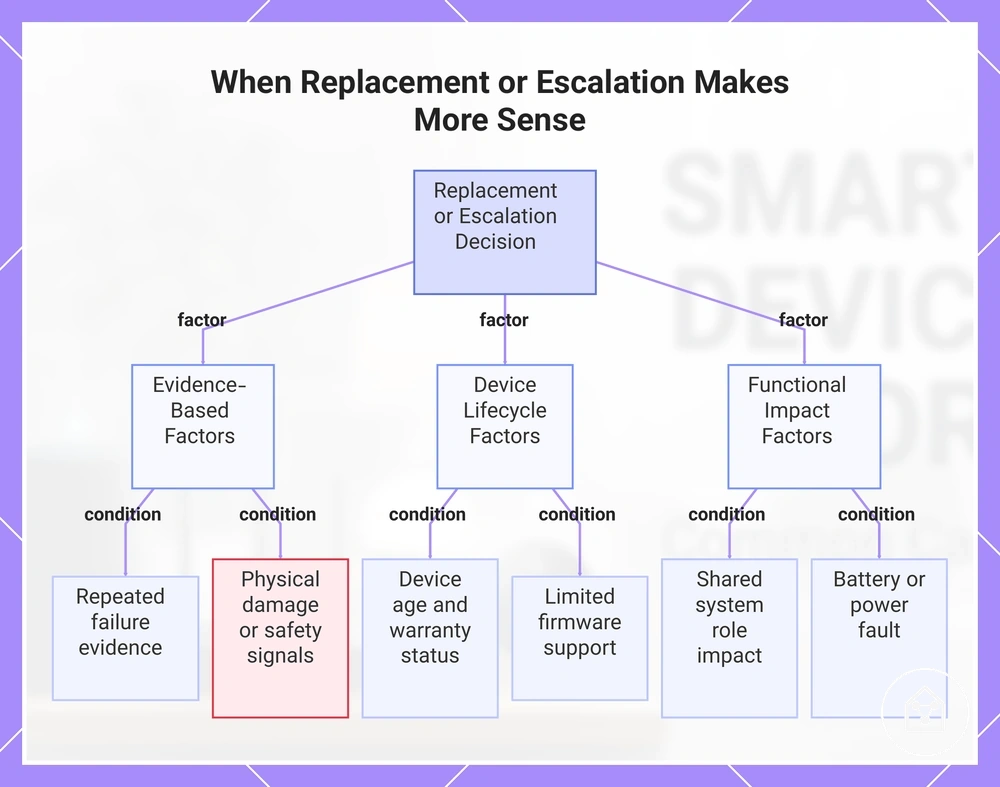
Replacement or escalation makes more sense when repeated failure, physical condition, support status, or device role shows that further troubleshooting is unlikely to provide useful information. A decision should be based on repeated evidence and observable conditions rather than frustration after a single failed attempt.
A decision should be based on repeated evidence and observable conditions rather than frustration after a single failed attempt.
Device condition, support status, and system role help determine whether to maintain the device, contact support, replace a component, or investigate another cause. Physical damage, overheating, or other safety signals can limit further troubleshooting, while firmware support and device age can influence whether an update-specific cause or service path should be considered. A replacement decision should focus on the affected component or failure condition rather than assuming it will resolve every wider smart home issue.
Maintenance, support, replacement, and update investigation paths depend on the evidence available.
Maintenance, support, replacement, and update investigation paths depend on the evidence available. For example, a device with a battery fault may only require a component change, while a device with repeated disconnects after a firmware change may require support review before replacement is considered.
- Repeated failure: If the same issue continues after consistent troubleshooting checks, repeated failure or repeated disconnects may justify escalation instead of repeating the same steps.
- Physical condition: If physical damage, overheating, or another safety signal is visible, stop troubleshooting and assess the condition before further use.
- Device age: If device age is associated with recurring reliability issues, the next decision may involve support status, maintenance, or replacement evaluation.
- Firmware support: If firmware support is limited or an update-specific cause is suspected, investigate the update path before deciding that replacement is required.
- Battery or power fault: If the failure points to a battery fault or power fault, replacing the affected component may be more appropriate than replacing the complete system.
- Support status and warranty: If warranty coverage or an available support path applies, contact support before making a replacement decision.
- System role: If the device has a shared role in the smart home system, such as controlling other devices, consider escalation when the failure affects multiple functions.
This chart shows the key factors that determine whether to replace a device, escalate to support, or continue troubleshooting based on evidence and conditions.